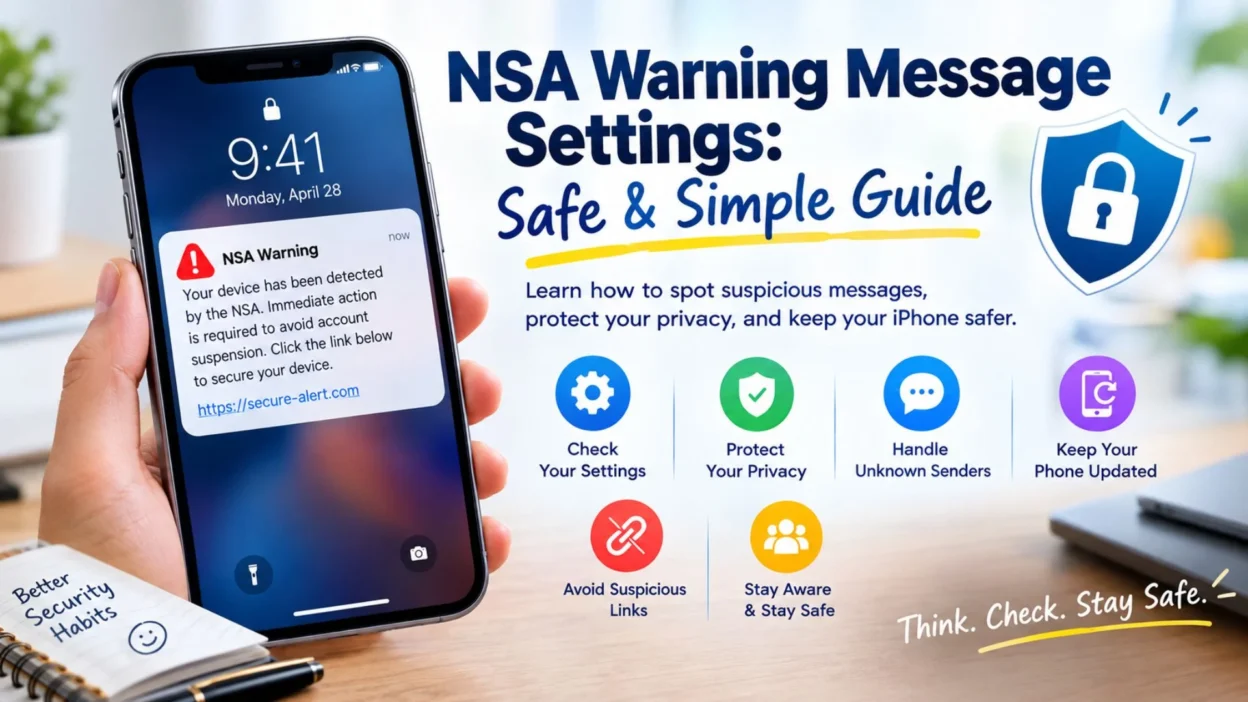
Seeing a message that mentions the NSA, surveillance, hacking, or a serious security problem can make anyone nervous. If you searched for NSA warning message settings, you may be wondering whether your iPhone has a special option for these alerts or whether you need to change something immediately.
The important thing to know is that there is no standard iPhone setting specifically named “NSA Warning Message Settings.” Instead, the message may be a normal security notification, an Apple-related alert, an emergency notification, or a suspicious message using official-sounding language.
Fortunately, you do not need to panic. A few practical settings can help you manage unfamiliar messages and protect your phone. You can also learn how to recognize warning signs before clicking a link, downloading anything, or sharing private information.
This guide explains the most useful NSA warning message settings to check, along with simple reminders you can save or share.
What Does NSA Warning Message Settings Mean?
The phrase NSA warning message settings can be confusing because it sounds like there is a dedicated iPhone option for government warnings.
There is no ordinary iPhone switch with that exact name. Instead, people may use this phrase when searching for information about suspicious security messages, privacy alerts, or notifications that appear to mention the NSA.
If a message suddenly claims that the NSA has detected a problem with your phone, do not assume the claim is genuine. Scammers can use government names and urgent language to make a message appear more believable.
The safest approach is to check the source first and avoid reacting to the message itself.
Top NSA Warning Message Settings
These settings are more useful than searching for a special NSA warning switch. They can help you improve your phone’s general security and manage unwanted messages.
- Keep your iPhone software updated so available security fixes can be installed.
- Review Privacy & Security settings to understand which apps can access sensitive information.
- Check Messages settings when you receive unexpected texts from unfamiliar senders.
- Review your Apple Account security if you notice unusual activity.
- Use a strong device passcode and available authentication features.
- Be careful with suspicious websites and unexpected browser warnings.
- Review unfamiliar apps and remove anything you do not recognize or need.
- Avoid giving passwords or verification codes to people who contact you unexpectedly.
- Treat urgent security claims carefully instead of assuming they are official.
Short NSA Warning Message Settings Tips
If you only need a quick checklist, these NSA warning message settings reminders can help you respond more safely.
- Check the sender before trusting the warning.
- Do not assume a message is official because it mentions the NSA.
- Avoid tapping unexpected links.
- Keep your iPhone software updated.
- Review Privacy & Security permissions regularly.
- Check your Messages filtering options.
- Look for unfamiliar apps on your phone.
- Review your account security if something seems unusual.
- Never send a password through an unexpected message.
- Never share a verification code with an unfamiliar person.
- Be cautious when a message demands immediate action.
- Do not download an unknown app because a message says your phone is infected.
- Save a screenshot if you need to document a suspicious warning.
- Verify unusual claims through trusted sources.
- Stay calm before making changes to your phone.
Best NSA Warning Message Settings for iPhone
Instead of looking for one special setting, focus on the built-in protections that actually help with phone security.
Software Update Settings
Keeping your iPhone updated is one of the simplest security habits you can follow.
When an update is available, use the normal software update area on your phone rather than a link provided by an unexpected message. Security updates can include fixes for known vulnerabilities.
A suspicious message should never convince you to install software through an unfamiliar website.
Privacy & Security Settings
The Privacy & Security section lets you review permissions that apps request.
You can check access to information such as your location, camera, microphone, contacts, photos, and other sensitive data. If an app has permission that does not make sense for its purpose, review whether that access is still necessary.
Regularly checking these permissions can give you a better understanding of what your apps can access.
Messages Settings
If your concern started with an unexpected text, Messages settings are especially relevant.
Modern iPhones provide tools for handling messages from unfamiliar senders and filtering unwanted content. These features can help separate unfamiliar conversations from messages you recognize.
However, filtering a message does not automatically prove that the sender is dangerous. It simply gives you another way to organize and manage messages.
If a text claims to represent a government agency and asks you to click a link or provide personal information, verify it independently before doing anything.
Safari Security Settings
Sometimes a warning does not arrive through Messages at all. It may appear while browsing a website.
If a webpage suddenly claims that the NSA has detected a virus, hacked your phone, or identified a serious problem, be cautious. A frightening webpage does not automatically represent an official government warning.
Avoid downloading unknown software or entering private information simply because a webpage tells you that something is wrong.
One-Line NSA Warning Message Settings Reminders
These quick reminders are useful when you want simple information that is easy to remember.
- There is no standard iPhone setting called “NSA Warning Message.”
- Keep your iPhone updated for better security.
- Review Privacy & Security permissions regularly.
- Check Messages settings for unfamiliar texts.
- Verify unexpected security claims before reacting.
- Never trust a warning simply because it sounds official.
- Avoid suspicious links in unsolicited messages.
- Protect your Apple Account carefully.
- Review unusual account activity when something feels wrong.
- Never share verification codes with strangers.
- A frightening message does not automatically mean your iPhone is hacked.
- Pause and verify before taking action.
Why an NSA Warning Message May Be Suspicious
Security scams often depend on fear and urgency. A message may claim that your phone has been compromised, monitored, infected, or flagged by a government agency.
The goal can be to make you act before you have time to think.
Watch for messages that contain several warning signs at once:
- Unexpected contact from an unfamiliar sender.
- Threats that your account or phone will be disabled.
- Requests for passwords or verification codes.
- Requests for payment or personal information.
- Links that you did not expect.
- Instructions to install an unknown app or profile.
- Pressure to act immediately.
- Claims that you will face serious consequences if you ignore the message.
A government agency name does not automatically make a message authentic. When something seems unusual, stop and verify the claim independently.
What to Do When You See an NSA Warning Message
The first step is to stay calm. Seeing the word NSA in a message can sound serious, but the wording alone does not prove that your device has been compromised.
- Do not click a suspicious link immediately.
- Do not download anything from the message.
- Check who actually sent the message.
- Look for pressure tactics or unusual demands.
- Do not provide passwords or verification codes.
- Take a screenshot if you need to keep a record.
- Review your relevant iPhone security settings.
- Verify the claim through a trusted source.
- Avoid using contact information supplied by a suspicious message.
- Report or delete the message when appropriate.
The most important rule is simple: do not let an alarming message rush your decision.
NSA Warning Message Settings for Better Message Safety
If an unfamiliar security message has appeared in your inbox, a few simple habits can make handling it easier. The goal is not to find a special NSA switch, but to make your messaging experience safer and easier to manage.
- Review messages from unknown senders before responding.
- Keep unwanted conversations out of your main inbox when filtering options are available.
- Avoid opening attachments from unexpected contacts.
- Check links carefully before visiting them.
- Delete messages that clearly look like spam or scams.
- Block senders who repeatedly send suspicious messages.
- Do not reply just to ask whether an alarming message is real.
- Keep important conversations separate from suspicious ones.
- Review your notification settings so unexpected alerts do not catch you off guard.
- Take time to read the complete message before deciding what to do.
How to Check NSA Warning Message Settings
When searching for NSA warning message settings, it helps to work through your phone’s ordinary security and messaging options rather than looking for a hidden government setting.
Start by opening your iPhone’s Settings app. From there, review the sections related to Messages, notifications, privacy, security, and software updates.
Your exact options can vary depending on your iPhone model and iOS version. Therefore, do not worry if a setting appears under a slightly different name.
The most useful checks include:
- Review your Messages preferences.
- Check options related to unknown senders.
- Review notification settings for Messages.
- Check Privacy & Security permissions.
- Confirm that your iPhone is running current software.
- Review your Apple Account security information.
- Look through installed apps for anything unfamiliar.
- Check whether an unexpected configuration profile or permission has been added.
Most importantly, do not change random settings simply because an alarming message tells you to do so.
NSA Warning Message Settings for Unknown Senders
Messages from people you do not recognize deserve a little extra attention.
An unknown sender could be someone legitimate, such as a business, delivery service, or person using a new number. However, it could also be spam or an attempted scam.
For that reason, filtering and organizing unfamiliar messages can be helpful.
When you receive an unexpected warning, consider these simple steps:
- Read the message without clicking anything.
- Check whether you recognize the sender.
- Look for unusual spelling, links, or requests.
- Do not provide sensitive information.
- Search for independent confirmation if the claim sounds serious.
- Block or report the sender when appropriate.
This approach helps you separate the existence of a message from the truth of its claims.
NSA Warning Message Settings for Privacy
Privacy settings are another important part of phone security.
If you are concerned that an unfamiliar warning could indicate unauthorized access, reviewing your privacy permissions can help you understand what your apps are allowed to do.
Pay attention to access involving:
- Camera
- Microphone
- Location
- Photos
- Contacts
- Bluetooth
- Local network
- Other sensitive information
You do not need to turn everything off. Instead, review permissions based on whether an app genuinely needs them.
For example, a navigation app may reasonably need location access, while an unrelated app may not have an obvious reason to use it.
Best Messages for Sharing
Sometimes people search for NSA warning message settings because they want to warn family members or friends about a suspicious text.
These short messages can help you share a practical reminder without creating unnecessary fear.
- “If you receive a message claiming the NSA detected a problem, verify it before taking action.”
- “A government name in a text does not automatically make the message legitimate.”
- “Never click an unexpected security link before checking where it comes from.”
- “Stay calm when a security message sounds urgent. Verify first.”
- “Protect your information by never sharing passwords or verification codes through unexpected texts.”
- “If a message threatens immediate consequences, take a moment to verify the claim.”
- “Keep your phone updated and review your privacy settings regularly.”
- “An alarming message is a reason to check, not a reason to panic.”
- “When a security warning looks unusual, verify it through a trusted source.”
- “Never download an unknown app just because a message says your phone is at risk.”
Copy-Paste Ready Messages
These messages are written for quick sharing when someone needs a simple reminder about suspicious security alerts.
- “If you get a strange NSA warning, don’t panic. Check the sender and verify the claim first.”
- “Be careful with unexpected security messages. Never click suspicious links or share private information.”
- “A warning that sounds official may still be fake. Always verify before taking action.”
- “Keep your phone updated, review your privacy settings, and be cautious with unfamiliar messages.”
- “If a text asks for your password, payment, or verification code, stop and verify it first.”
- “Don’t let an urgent message pressure you into making a quick decision.”
- “If a message claims your phone has been compromised, verify the warning independently before doing anything.”
- “When in doubt, avoid the link and check the information through a trusted source.”
- “Your best response to a suspicious security message is patience, not panic.”
- “Check the source, protect your information, and never trust an alarming message blindly.”
Common Mistakes to Avoid
A suspicious warning can become more dangerous when someone reacts too quickly.
One common mistake is clicking a link simply because the message says there is an emergency. Another is calling a phone number included in the warning without checking whether it is genuine.
You should also avoid downloading applications, sharing passwords, or giving remote access to your device because an unexpected message tells you to.
Keep these reminders in mind:
- Do not panic.
- Do not click first and investigate later.
- Do not share personal information.
- Do not install unfamiliar software.
- Do not trust a message solely because it uses official-looking language.
- Do not assume every warning means your device has been hacked.
- Do not give strangers remote access to your phone.
- Do not forward alarming messages without checking their authenticity.
Instead, pause and verify. That small delay can prevent a much bigger problem.
When to Take a Warning Seriously
Not every unusual message is fake, and not every security notification should be ignored.
Take a warning seriously when it comes from a source you can independently verify and when the information matches what you can confirm through official channels.
You should pay particular attention if you notice several genuine signs of account or device trouble, such as unfamiliar account activity, unexpected password changes, or security notifications you can confirm independently.
Even then, use trusted channels to investigate the situation.
Do not rely on instructions contained only in an unexpected message. If you need to secure an account, open the official service yourself rather than following an unfamiliar link.
NSA Warning Message Settings and Scam Awareness
The safest approach is to think of security as a habit rather than a single setting.
Your phone’s built-in protections can help, but your decisions matter too. A carefully designed scam can look convincing, especially when it uses urgent language or familiar names.
Before responding to a suspicious message, ask yourself:
- Did I expect this message?
- Do I recognize the sender?
- Is the request reasonable?
- Does it ask for sensitive information?
- Is there an unexpected link?
- Am I being pressured to act immediately?
- Can I verify the claim somewhere else?
If several answers raise concerns, do not interact with the message until you can verify it.
Best NSA Warning Message Settings for Everyday Protection
You do not need complicated changes to stay safer when dealing with suspicious messages. A few consistent habits can make a meaningful difference.
Keep your iPhone and important apps updated, review privacy permissions from time to time, and pay attention to unexpected security notifications. In addition, use strong passwords and available account-protection features.
When a message looks unusual, avoid making a decision based only on its wording. Instead, verify the information through a trusted source.
These simple habits are especially useful when a message mentions surveillance, hacking, government agencies, account problems, or urgent security threats.
Quick NSA Warning Message Settings Checklist
If you want something easy to save for later, use this checklist whenever an unexpected warning appears.
- Check the sender.
- Read the entire message carefully.
- Avoid unexpected links.
- Do not download unknown files or applications.
- Never share passwords through messages.
- Never share verification codes with strangers.
- Review your phone’s security settings.
- Keep your software updated.
- Check privacy permissions.
- Review unfamiliar apps.
- Verify serious claims independently.
- Block or report suspicious senders when appropriate.
- Keep a screenshot if you need to document the warning.
- Contact the relevant service through its official channel if an account issue is involved.
- Do not let urgency force you into a quick decision.
FAQ About NSA Warning Message Settings
Is there an NSA warning message setting on iPhone?
No standard iPhone option is specifically named “NSA Warning Message Settings.” The phrase generally refers to searches about security warnings, suspicious messages, privacy settings, or government-related alerts.
Should I trust a message that says the NSA detected my phone?
Do not trust the claim automatically. Check the sender, avoid clicking links, and verify the information through an independent and trusted source before taking action.
Can a text message prove that my phone was hacked?
No. A text claiming that your phone has been hacked does not by itself prove that your device is compromised. Treat unexpected claims cautiously and investigate them independently.
What should I do if an NSA warning message asks for information?
Do not provide passwords, verification codes, financial details, or other sensitive information through an unexpected message. Verify the request through a trusted channel first.
How can I make my iPhone safer from suspicious messages?
Keep your software updated, review privacy and messaging settings, use strong account protection, and remain cautious with unfamiliar links, attachments, and senders.
Final Thoughts on NSA Warning Message Settings
Searching for NSA warning message settings can be unsettling, especially when a message makes your phone or personal information sound like it is in immediate danger. However, the phrase does not refer to a standard iPhone setting that you need to activate.
Instead, focus on practical security habits. Keep your device updated, review your privacy permissions, manage unfamiliar messages carefully, and protect your account information. Most importantly, do not let an alarming message rush you into clicking a link, downloading software, or sharing private details.
If a warning appears suspicious, pause before responding. Check the sender, look for unusual requests, and verify important claims through a trusted source.
You can also save the quick checklist in this guide for future reference or share it with someone who receives a similar message.
The smartest security setting is often simple: stay calm, verify first, and act only when you know what you are dealing with.

Ryan Mitchell is a professional content writer who specializes in creating heartfelt messages, wishes, greetings, and inspirational quotes for every occasion. He is passionate about helping readers express their thoughts and emotions through meaningful, engaging, and easy-to-share content.