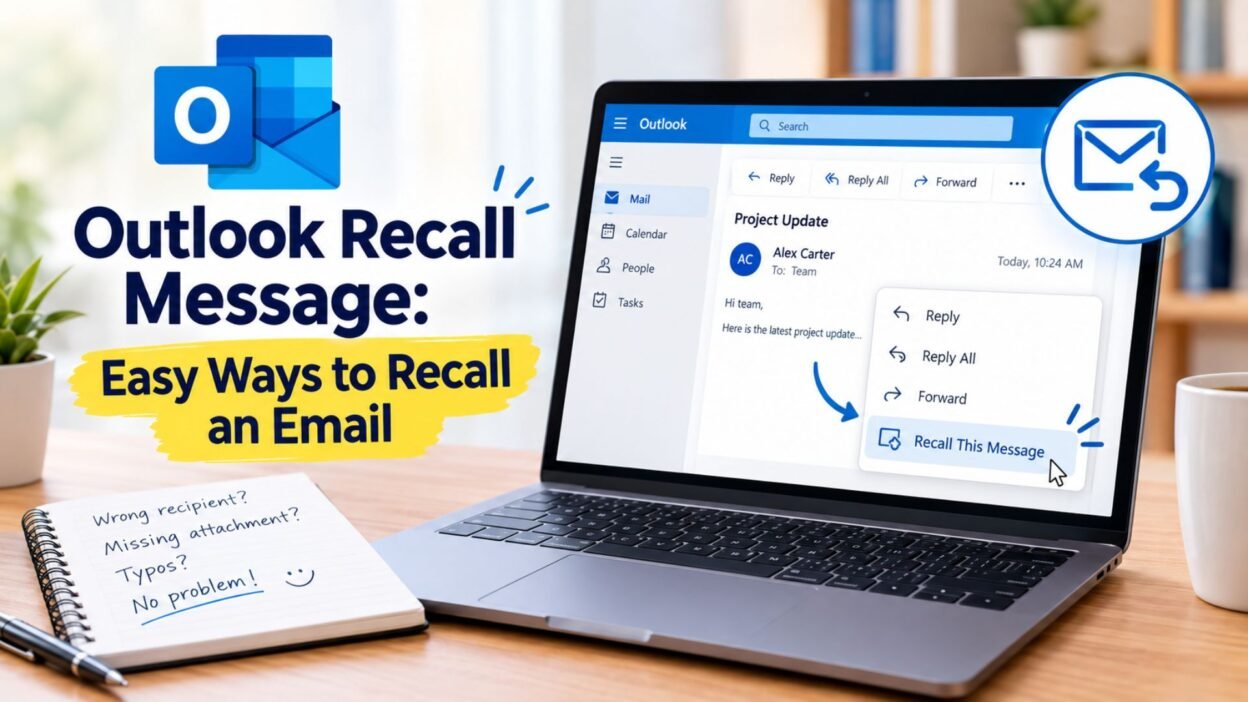
Sending an email and immediately noticing a mistake can be stressful. Maybe you forgot an attachment, spotted a typo, sent the message to the wrong person, or realized that an important detail was missing. In those moments, knowing how an Outlook recall message works can save you from unnecessary worry.
Microsoft Outlook includes a recall feature that can attempt to remove a message from a recipient’s mailbox or replace it with an updated version. However, the feature has specific requirements and does not work in every situation. That is why it helps to understand the process before relying on it.
Whether you use Outlook for work, school, or everyday communication, these messages can help you handle an email mistake calmly and professionally. Below, you’ll find useful guidance, short wording ideas, and copy-paste-ready messages for situations where you need to correct or follow up on an email.
Top Outlook Recall Message Options
These messages work well when you need to acknowledge an email mistake and let the recipient know that an updated message is coming.
- Please disregard my previous email. I noticed an error and will send an updated version shortly.
- Kindly ignore my previous message. I need to make a small correction before sending the final version.
- Please disregard the email I just sent. I noticed an issue and will follow up with the correct information.
- Sorry for the confusion. Please ignore my previous email while I make a quick correction.
- Kindly disregard my last message. I accidentally sent an incomplete version.
- Please ignore my previous email. I’ll send the corrected information shortly.
- My apologies for the earlier email. Please disregard it, as I need to make a few changes.
- Please disregard my previous message. I noticed that some information was missing.
- Sorry about that! Please ignore my last email while I correct the details.
- Kindly disregard the previous message. A revised version will follow shortly.
- Please ignore my previous email. I sent it before completing the final review.
- My apologies for the earlier message. Please wait for the corrected version.
- Please disregard the email above. I noticed a mistake and will send the updated version soon.
- Kindly ignore my previous message. I need to correct a few details before proceeding.
- Sorry for the mix-up. Please disregard my last email and refer to the updated message.
- Please ignore my previous email. I accidentally sent an earlier draft.
- My apologies. The previous email contained incorrect information, so please disregard it.
- Please disregard my last message. I’ll resend it with the correct details.
- Kindly ignore the previous email while I prepare the revised version.
- Sorry for sending the wrong version. Please disregard my previous email.
Short Outlook Recall Messages
When the mistake is minor, a short and direct message is usually enough.
- Please disregard my previous email.
- Kindly ignore my last message.
- Please ignore my previous email and wait for the updated version.
- Sorry, please disregard my last email.
- Please disregard the earlier message. A correction is coming.
- Kindly ignore my previous message. I’ll resend it shortly.
- Sorry for the confusion. Please disregard my last email.
- Please ignore the previous email; I sent it by mistake.
- Kindly disregard my earlier message.
- Please ignore my last email and refer to the updated version.
- Sorry about that. Please disregard my previous message.
- Please disregard the email sent earlier.
- Kindly ignore the previous version.
- Please ignore my earlier email while I make a correction.
- Sorry, I sent that message too soon. Please disregard it.
- Please disregard my previous email. I’ll send the correct version shortly.
- Kindly ignore my last message. The updated email will follow.
- Please ignore the earlier email. It contained an error.
- Sorry for the mistake. Please disregard my previous message.
- Please disregard my last email and use the revised version instead.
Best Outlook Recall Messages for Sharing
These options are useful when you want to sound professional, polite, and clear after sending an email that needs correction.
- Professional: Please disregard my previous email. I noticed an error in the information provided and will send a corrected version shortly.
- Polite: My apologies for the confusion. Please disregard my previous message while I make the necessary corrections.
- Work-friendly: Please ignore my earlier email. I sent an incomplete version by mistake and will follow up with the finalized message.
- Formal: Kindly disregard my previous correspondence. I will provide the corrected information in a separate email.
- Friendly: Sorry about the mix-up! Please ignore my previous email. I’ll send the correct version shortly.
- Simple: Please disregard my previous email. I need to make a quick correction before sending the final version.
- For an incorrect attachment: Please disregard my previous email. I attached the wrong file and will send the correct attachment shortly.
- For missing information: Please ignore my previous message. I noticed that some important details were missing.
- For a typo: Please disregard my previous email. I noticed a few errors and will resend the corrected version.
- For an incorrect recipient: Please disregard my previous message if you received it in error. My apologies for the mix-up.
- For an incomplete email: Please ignore my previous email. It was sent before I had finished preparing the complete message.
- For an outdated file: Please disregard the previous attachment. I’ll send the latest version shortly.
- For corrected details: Please disregard my previous email and refer to the corrected information in my next message.
- For a professional correction: My apologies for the earlier email. Please disregard it and use the revised version that follows.
- For a quick follow-up: Please ignore my previous message. I’ll send the corrected details in just a moment.
One-Line Outlook Recall Messages
These short options are useful when you need to quickly tell someone that your earlier email should be ignored.
- Please disregard my previous email.
- Kindly ignore my last message.
- Please ignore the email I just sent.
- Sorry, please disregard my earlier message.
- Kindly disregard the previous email.
- Please ignore my last email and wait for the corrected version.
- Sorry for the confusion; please disregard my previous message.
- Please disregard the earlier version.
- Kindly ignore my previous email for now.
- Please ignore my last message; I’ll resend it shortly.
- Sorry, I sent the wrong version.
- Please disregard the email above.
- Kindly ignore my earlier message.
- Please disregard my previous email while I make a correction.
- Sorry about that; please ignore my last email.
- Please ignore the previous message and refer to my next email.
- Kindly disregard my earlier email.
- Please disregard my last message; an updated version is coming.
- Sorry for the mistake; please ignore my previous email.
- Please ignore the earlier email and use the revised version.
Outlook Recall Messages for Different Situations
The right wording depends on why you need to correct or recall the email. These examples keep the explanation clear without making the situation sound worse than it is.
When You Sent the Wrong Attachment
- Please disregard my previous email. I attached the wrong file and will send the correct one shortly.
- Kindly ignore my last message. The attachment was incorrect, and I’ll resend the right file.
- Sorry for the mix-up. Please disregard the previous email and use the corrected attachment in my next message.
- Please ignore my earlier email. I accidentally included an outdated attachment.
- My apologies. Please disregard the previous message while I send the correct document.
When You Forgot an Attachment
- Please disregard my previous email. I forgot to include the attachment and will resend it shortly.
- Kindly ignore my last message. The document was missing from the email.
- Sorry about that. Please disregard my previous email; I’ll send the attachment in a follow-up message.
- Please ignore the earlier email. I forgot to attach the file.
- My apologies for missing the attachment. Please disregard my previous message.
When You Sent an Incorrect Version
- Please disregard my previous email. I accidentally sent an earlier draft.
- Kindly ignore the version I sent earlier. I’ll provide the finalized copy shortly.
- Please disregard my last message and refer to the revised version that follows.
- Sorry for the confusion. The previous email contained an outdated version.
- Please ignore my earlier email. I’ll send the corrected version shortly.
When You Made a Typo
- Please disregard my previous email. I noticed a typo and will resend the corrected version.
- Kindly ignore my last message. I spotted a few errors that need correction.
- Sorry about the typo in my previous email. Please disregard it.
- Please ignore my earlier message while I correct a few details.
- My apologies for the error. Please refer to the corrected email instead.
When You Sent the Email Too Soon
- Please disregard my previous email. It was sent before I finished reviewing it.
- Kindly ignore my last message. I accidentally sent it before it was complete.
- Sorry about that. Please disregard the email I just sent.
- Please ignore my previous message. I sent it prematurely and will follow up with the final version.
- My apologies. Please disregard the earlier email while I complete the necessary updates.
Outlook Recall Message for Professional Use
A professional recall message should be brief, polite, and specific enough to prevent confusion. Avoid giving unnecessary details if a simple correction is all that is needed.
- Please disregard my previous email. I noticed an error in the information provided and will send a corrected version shortly.
- My apologies for the earlier message. Please disregard it and refer to the updated information in my next email.
- Kindly disregard my previous correspondence. I identified an issue that needs to be corrected before proceeding.
- Please ignore my earlier email. I accidentally sent an incomplete version and will follow up with the finalized information.
- I apologize for the confusion. Please disregard my previous message while I make the necessary corrections.
- Please disregard the email sent earlier. I will provide the accurate information in a revised message.
- Kindly ignore my previous email and refer to the updated version that I will send shortly.
- Please disregard my earlier message. I noticed that some details require correction.
- My apologies for the mistake. Please ignore the previous email and use the revised information instead.
- Kindly disregard my previous message. I’ll send the corrected document and details shortly.
Copy-Paste Ready Outlook Recall Messages
You can copy these directly when you need to correct an email without spending time writing a new explanation.
- Simple: Please disregard my previous email. I noticed an error and will send the corrected version shortly.
- Professional: My apologies for the earlier message. Please disregard it and refer to the revised information in my next email.
- Attachment: Please disregard my previous email. I attached the wrong file and will send the correct attachment shortly.
- Missing file: Kindly ignore my previous message. I forgot to include the attachment and will resend the email with the file.
- Wrong version: Please disregard the previous email. I accidentally sent an earlier draft and will send the final version shortly.
- Incorrect details: Please ignore my last email. I noticed that some information needs to be corrected.
- Early send: Sorry for the confusion. Please disregard my previous email, as it was sent before I had finished reviewing it.
- Formal: Kindly disregard my previous correspondence. I will provide a corrected version with the necessary updates.
- Friendly: Sorry about that! Please ignore my previous email. I’ll send the correct version shortly.
- Quick correction: Please disregard my previous message. I’ll follow up with the corrected information shortly.
Best Outlook Recall Message for Captions
If you need a short line for a note, caption, status, or quick reminder, these options keep the wording natural and easy to understand.
- Oops, wrong email—please disregard my previous message.
- Sent too soon? Please ignore my earlier email.
- Please disregard my last email; a corrected version is coming.
- Wrong attachment, wrong moment—please ignore my previous email.
- Please ignore the earlier message and check the updated version.
- A quick correction: please disregard my previous email.
- Sent by mistake—please disregard my last message.
- Please ignore my previous email while I make a quick update.
- Correction needed—please disregard the earlier message.
- Please disregard the previous version and use the updated one.
- Sorry for the mix-up. Please ignore my last email.
- Please ignore the earlier email; the correct version is on its way.
- Previous email sent in error—please disregard it.
- Please disregard my last message and wait for the revised email.
- Small correction needed—please ignore my previous email.
What to Do After Sending a Recall Message
An Outlook recall message can help communicate that an earlier email should not be used, but a follow-up message can also prevent confusion if the original email has already been seen.
- Send a brief correction as soon as you notice the mistake.
- Clearly state which email the recipient should disregard.
- If you sent the wrong attachment, provide the correct file in the new message.
- If information was incorrect, clearly provide the corrected details.
- If the email was incomplete, send the complete version instead of relying only on the recall.
- Keep your explanation professional and avoid unnecessary details.
- Check the new email carefully before sending it.
- If the situation is important, confirm that the recipient received the corrected information.
Frequently Asked Questions
Can I recall an email in Outlook?
Outlook has a message recall feature in certain Microsoft 365 or Exchange environments. Whether it works depends on factors such as the recipient’s account and whether the original message has been opened.
Does an Outlook recall always work?
No. An Outlook recall is not guaranteed to remove a message successfully. The result depends on the email environment and other conditions.
What should I write if an Outlook recall fails?
Send a short correction explaining that the previous email should be disregarded. For example: “Please disregard my previous email. I noticed an error and will send the corrected information shortly.”
Can I recall an email sent to the wrong person?
You can attempt to use Outlook’s recall feature where supported. If the recipient may already have seen the email, a polite follow-up can help clarify the mistake.
Is it better to recall an email or send a correction?
It depends on the situation. If the email is important or contains incorrect information, sending a clear correction can help ensure the recipient knows which information to use.
Conclusion
Sending the wrong email can happen to anyone, especially when messages are being written quickly. An Outlook recall message can be useful when you need to address an email that was sent too early, contained an incorrect attachment, or included information that needs correction.
The key is to stay calm and communicate clearly. A short message such as “Please disregard my previous email” can often prevent confusion while you prepare the correct version. For professional situations, adding a brief explanation can make your follow-up sound more polished and considerate.
Keep these Outlook recall message examples saved so you can quickly find the right wording when you need it. Whether the mistake involves a typo, missing attachment, outdated document, or incomplete information, a clear follow-up can help you handle the situation smoothly.
Sometimes, the best response to an email mistake is simple: acknowledge it, correct it, and move forward.

Ryan Mitchell is a professional content writer who specializes in creating heartfelt messages, wishes, greetings, and inspirational quotes for every occasion. He is passionate about helping readers express their thoughts and emotions through meaningful, engaging, and easy-to-share content.