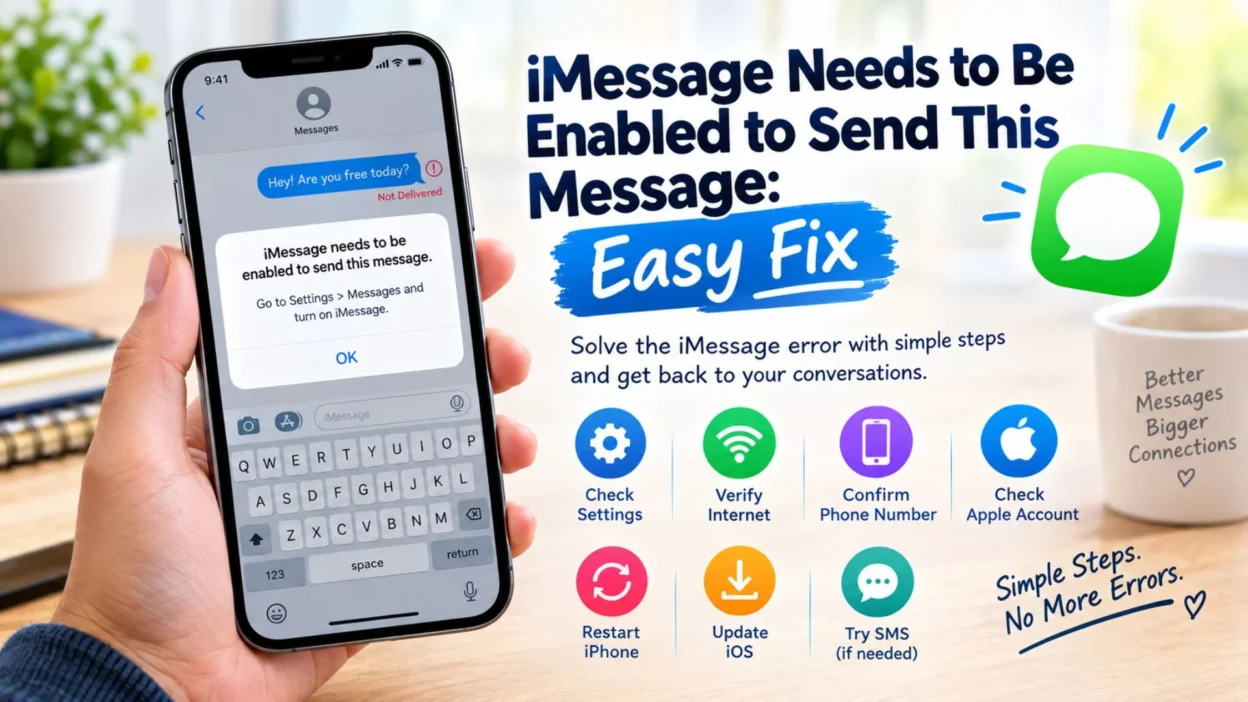
Seeing the message “iMessage needs to be enabled to send this message” when you are simply trying to text someone can be frustrating. You may have a working phone, an active cellular plan, and an internet connection, yet the message still refuses to send.
This alert usually means your iPhone is trying to send the message through iMessage, but iMessage is not currently available or properly activated. Sometimes the problem comes from a disabled setting. In other cases, your internet connection, Apple Account, phone number, or iMessage activation may be causing the issue.
Fortunately, this error is often easy to fix. You can check your Messages settings, confirm your phone number, restart the connection, or switch to regular SMS when appropriate.
This guide explains what the warning means and gives you practical steps to get your messages working again without unnecessary confusion.
What Does “iMessage Needs to Be Enabled to Send This Message” Mean?
The message “iMessage needs to be enabled to send this message” usually appears when your iPhone attempts to use iMessage but the service is disabled, unavailable, or not fully activated.
iMessage is Apple’s messaging service for communicating with other Apple devices over an internet connection. It works differently from traditional SMS or MMS messages provided through your mobile carrier.
When iMessage is unavailable, your iPhone may need to use another messaging method. However, certain conversations can become difficult to send if your current settings or connection do not allow the message to switch properly.
Common reasons include:
- iMessage is turned off.
- Your iPhone has not completed iMessage activation.
- Your phone number is not selected for iMessage.
- You are signed out of your Apple Account.
- Your internet connection is unavailable or unstable.
- Your cellular service has a temporary problem.
- Your iPhone needs to be restarted.
- Your Messages settings need to be refreshed.
- Apple may be experiencing a temporary service issue.
Top Fixes for iMessage Needs to Be Enabled
The quickest solution is usually to check whether iMessage is actually enabled on your iPhone.
Open your iPhone’s Settings and look for the Messages settings. Make sure iMessage is switched on.
If it is already enabled, do not immediately assume something is seriously wrong. A temporary activation or connection issue can produce the same warning.
Try these basic fixes first:
- Turn iMessage off and wait briefly.
- Turn iMessage back on.
- Make sure your iPhone has an internet connection.
- Check that your phone number is selected for iMessage.
- Confirm that you are signed in to your Apple Account.
- Restart your iPhone.
- Try sending the message again.
- Check whether other messages are sending normally.
If the problem continues, move through the following checks instead of repeatedly tapping Send.
Turn On iMessage
The first thing to check is whether iMessage is enabled.
If iMessage is switched off, your iPhone cannot send messages through Apple’s messaging service. This is one of the simplest reasons the warning can appear.
Go to your Messages settings and look for the iMessage option.
If it is off, turn it on and give your iPhone a little time to activate the service.
Afterward, open the conversation again and try sending the message.
If iMessage was already enabled, turning it off and back on can sometimes refresh the connection. However, activation may take some time, so avoid repeatedly changing the setting within a few seconds.
Check Your Internet Connection
iMessage relies on an internet connection. Therefore, even when the iMessage setting is enabled, a weak or unavailable connection can prevent a message from being delivered.
Check whether your iPhone is connected to Wi-Fi or has working cellular data.
You can quickly test the connection by opening a website or another internet-based app.
If nothing loads properly, the problem may not be iMessage itself.
Try these simple connection checks:
- Move to an area with a stronger Wi-Fi signal.
- Turn Wi-Fi off and back on.
- Check whether cellular data is working.
- Switch between Wi-Fi and cellular data if possible.
- Move away from areas with poor reception.
- Restart your network connection if necessary.
Once your internet connection is working normally, return to Messages and try again.
Check Your iMessage Phone Number
Sometimes iMessage is enabled, but your phone number is not correctly selected for sending and receiving messages.
This can happen after changing SIM cards, switching carriers, restoring an iPhone, or setting up a new device.
Open the Messages settings and check the sending and receiving options associated with iMessage.
Look for your phone number and make sure it is available for iMessage.
If your number is missing, inactive, or appears to be waiting for activation, that can explain why you continue seeing the warning.
Your Apple Account email address may also appear as an available iMessage address. Make sure you understand which address or number you want to use when starting conversations.
Restart Your iPhone
A restart sounds basic, but it can fix temporary problems involving messaging, network connections, and background services.
If you have already confirmed that iMessage is enabled and your internet connection works, restarting the phone is a sensible next step.
After the iPhone turns back on, open Messages and try sending the same message again.
A restart can be especially useful when the warning appeared suddenly after your phone had been working normally.
Check Your Apple Account
iMessage can also be affected when your Apple Account is not properly connected.
If you recently changed your Apple Account details, restored your phone, signed out, or moved to another device, check whether your account is still connected to Messages.
You may need to sign in again or confirm the account being used for iMessage.
Do not enter account information into a link sent through an unexpected message. Use your iPhone’s normal settings instead.
Short Fixes for the iMessage Error
If you want a quick checklist to save for later, these are the main things to try:
- Turn on iMessage.
- Check your Wi-Fi.
- Check cellular data.
- Confirm your phone number.
- Check your Apple Account.
- Restart your iPhone.
- Turn iMessage off and on again.
- Wait for activation to complete.
- Try another conversation.
- Check whether other messages are working.
- Install available iPhone software updates.
- Try sending the message again after reconnecting to the internet.
Why Does iMessage Say It Needs to Be Enabled?
There can be several reasons for this warning, and the message itself does not always tell you which one is responsible.
For example, you might have disabled iMessage without realizing it. Alternatively, your iPhone may still be trying to activate the service after a device change.
A network interruption can also interfere with messaging. Likewise, problems with your phone number or Apple Account can prevent iMessage from working as expected.
The important thing is to identify which part of the setup is causing the problem.
If iMessage is enabled, your internet connection works, your phone number is selected, and your account is connected, but the warning continues, move on to the more advanced troubleshooting steps in the next part.
iMessage Needs to Be Enabled to Send This Message After Turning It On
Sometimes you enable iMessage and expect everything to work immediately, but the same warning still appears. This can happen when activation has not finished or when another setting is interfering with the messaging service.
Give the phone a little time after enabling iMessage. Then close the Messages app, reopen it, and try again.
If the message still will not send, check these areas:
- Confirm that iMessage remains switched on.
- Make sure your phone number appears under the sending and receiving options.
- Check that your Apple Account is connected.
- Confirm that Wi-Fi or cellular data is working.
- Restart your iPhone after making the changes.
- Try sending a new message rather than repeatedly retrying the same failed message.
Check Date and Time Settings
Your iPhone’s date and time settings can affect some online services.
If the date, time, or time zone is incorrect, it is worth checking the automatic date and time option.
Keeping these settings accurate can prevent unnecessary connection and activation problems.
After correcting the settings, return to Messages and try sending the message again.
Try Sending a New Message
If one particular conversation produces the warning, test whether the problem affects every conversation.
Start a new message to someone who uses an Apple device and try sending a simple text.
This can help you determine whether the issue is related to iMessage generally or only to one conversation.
If the new message sends normally, the original conversation may have a separate issue.
If every iMessage fails, continue checking your phone’s activation, account, and network settings.
Check Whether iMessage Is Available
Sometimes the problem is not caused by your iPhone.
Apple’s services can occasionally experience temporary interruptions. If iMessage is unavailable on Apple’s side, changing settings repeatedly will not necessarily fix the problem.
When everything on your device appears correct, check Apple’s official system status information for current service problems.
If there is an outage, waiting for the service to recover may be the best option.
Update Your iPhone
Keeping your iPhone updated can help resolve software-related problems.
If you are running an older version of iOS, check for an available software update through your normal iPhone settings.
Before updating, make sure your device has enough battery and a reliable internet connection.
After the update finishes, restart the phone if necessary and test Messages again.
Do not install an unfamiliar configuration file or application because a random website claims it will repair iMessage.
Try SMS When iMessage Is Unavailable
If you need to contact someone immediately and iMessage is unavailable, SMS may be an alternative when your carrier and settings support it.
Your iPhone can sometimes send a message as a regular text when iMessage cannot be used.
However, this depends on your settings, cellular service, and the recipient’s phone.
If you regularly need SMS fallback, review the Messages options on your iPhone and make sure the appropriate setting is available.
Keep in mind that SMS and MMS can use your carrier’s messaging service and may be subject to your mobile plan.
iMessage Needs to Be Enabled but the Switch Is Already On
This is one of the most confusing situations.
You look at your settings, see that iMessage is enabled, and still receive the message saying that it needs to be enabled.
In that situation, the issue may involve activation rather than the simple on/off setting.
Try this sequence:
- Confirm your internet connection.
- Check your phone number.
- Confirm your Apple Account.
- Restart your iPhone.
- Turn iMessage off.
- Restart the phone.
- Turn iMessage back on.
- Wait for activation.
- Test a new message.
Avoid repeatedly turning iMessage on and off in rapid succession. If activation takes time, give the service an opportunity to complete the process.
iMessage Needs to Be Enabled After Changing Phones
Changing from one iPhone to another can sometimes create messaging confusion.
Your new phone may need to activate your phone number for iMessage. If you recently moved your SIM or eSIM to another device, check that your cellular service is active and that the correct number is associated with the phone.
You should also confirm that your Apple Account is connected to the new device.
If messages continue arriving on an old Apple device while the new iPhone behaves differently, review your messaging setup across your Apple devices.
iMessage Needs to Be Enabled After Changing SIM or Carrier
A SIM or carrier change can affect how your phone number is recognized by messaging services.
If you recently switched carriers, replaced a SIM, or activated an eSIM, give the device time to reconnect to your mobile service.
Then check whether your phone number is correctly displayed in your iPhone settings.
You may also want to restart the phone after your cellular service becomes active.
If cellular service itself is not working, contact your carrier rather than assuming the problem is entirely related to iMessage.
Messages That Use a Different Messaging Service
Not every conversation uses iMessage.
iMessage is designed for communication between Apple devices when the service is available. Messages to other types of phones generally use carrier-based messaging instead.
The color and behavior of a conversation can therefore differ depending on the recipient and messaging service being used.
If you expected a message to use iMessage but it is attempting another method, check the recipient’s number and your messaging settings.
Also make sure you are not accidentally sending the message to an old contact address.
When Nothing Seems to Work
If you have checked iMessage, your internet connection, phone number, Apple Account, software, and service availability but the error continues, you may need additional help.
Before contacting support, write down what you have already tried. This can make troubleshooting faster.
It can also help to note:
- Your iPhone model.
- Your iOS version.
- Whether Wi-Fi works.
- Whether cellular data works.
- Whether other messages send successfully.
- Whether the problem affects one contact or everyone.
- Whether you recently changed your SIM, carrier, or phone.
- Whether iMessage shows an activation-related message.
This information can help identify whether the problem is related to your device, account, network, or messaging service.
Best Messages for Captions
If you want to turn the frustrating moment into a light social caption, these short lines work well.
- “When your iPhone says iMessage needs to be enabled… and you just wanted to say hello. 📱”
- “One message, one error, and suddenly I’m troubleshooting my entire phone.”
- “iMessage said no. My patience said absolutely not.”
- “Just trying to send a text, not solve a technology mystery.”
- “When the message refuses to send but the conversation cannot wait.”
- “Today’s unexpected task: figuring out why iMessage stopped cooperating.”
- “My phone has one job, and apparently it needed a settings meeting.”
- “A simple text turned into a full iPhone troubleshooting session.”
- “When iMessage needs attention before I can send one little message.”
- “Technology: making a two-second text take ten minutes.”
Copy-Paste Ready Messages
These practical messages are useful when you need to tell someone that your text is delayed because of an iMessage problem.
- “My iMessage is having trouble right now, so my message may take a little longer to reach you.”
- “I’m having an iMessage issue on my phone. I’ll send the message again once it starts working.”
- “My text isn’t going through right now, but I’m working on fixing the messaging problem.”
- “iMessage is giving me an error, so I may need to resend this another way.”
- “My phone is having a messaging issue at the moment. I’ll get back to you as soon as it’s fixed.”
- “Sorry, my message didn’t send because iMessage is acting up. I’ll try again shortly.”
- “I’m troubleshooting an iMessage problem, so please don’t think I’m ignoring your message.”
- “My iPhone is having trouble sending messages right now. I’ll reconnect with you soon.”
More Ways to Fix the iMessage Error
When “iMessage needs to be enabled to send this message” keeps appearing, the best approach is to work through the possible causes one at a time. Most problems involve activation, connectivity, account settings, or a temporary software issue.
- Check that iMessage is enabled in your Messages settings.
- Confirm that your iPhone is connected to Wi-Fi or cellular data.
- Make sure your phone number is listed correctly for iMessage.
- Check that you are signed in with the correct Apple Account.
- Restart your iPhone after changing important messaging settings.
- Install an available iOS update if your device is running outdated software.
- Test iMessage with another Apple contact.
- Check whether the issue affects every conversation or only one person.
- If you recently changed your SIM, eSIM, carrier, or phone, verify that your number is active.
- Check Apple’s service status if everything on your device appears normal.
If iMessage Is Stuck on Activation
An activation problem can be particularly frustrating because iMessage may appear to be enabled while your phone number is still not ready to use with the service.
- Make sure your cellular service is active.
- Connect your iPhone to a reliable internet connection.
- Confirm that your date and time settings are correct.
- Check that your phone number is entered correctly.
- Make sure your Apple Account is available for Messages.
- Restart the iPhone after checking these settings.
- Give activation some time instead of repeatedly switching the service on and off.
If the phone continues showing an activation problem, your carrier or Apple Support may be able to provide additional assistance.
What If Only One Person Cannot Receive Your iMessage?
If messages work with other contacts but fail with one particular person, the issue may not be your iMessage settings.
- Check that you have the correct phone number.
- Make sure you are not messaging an old contact address.
- Start a new conversation with the person’s current number.
- Ask whether the other person recently changed phones.
- Check whether the recipient has iMessage enabled.
- Try another available messaging method if you need to reach them quickly.
A single failed conversation does not necessarily mean your entire iMessage service is broken.
What If Every Message Fails?
When every iMessage conversation produces the same warning, focus on your own device and account first.
- Confirm that iMessage is enabled.
- Check your internet connection.
- Confirm your phone number.
- Check your Apple Account.
- Restart the device.
- Look for available software updates.
- Check Apple’s service status.
- Contact Apple Support if the problem continues after these checks.
If regular cellular service is also failing, contact your mobile carrier because the underlying problem may involve your network connection rather than iMessage alone.
Things You Should Not Do
When a messaging error appears, it is tempting to search for a quick fix and install whatever a website recommends. However, that can create additional problems.
- Do not download unknown applications that claim to repair iMessage.
- Do not install an unfamiliar configuration profile.
- Do not enter your Apple Account password into a suspicious website.
- Do not share verification codes with someone who contacts you unexpectedly.
- Do not follow random troubleshooting links from unknown senders.
- Do not repeatedly change multiple settings without knowing what they do.
- Do not assume the error means your iPhone is hacked.
- Do not erase your entire iPhone as a first troubleshooting step.
Start with the normal Messages, network, account, and software settings instead.
Quick Questions About “iMessage Needs to Be Enabled to Send This Message”
Why does my iPhone say iMessage needs to be enabled?
- The message usually appears when iMessage is turned off, has not completed activation, or is temporarily unavailable. Your internet connection, phone number, Apple Account, or software can also affect messaging.
How do I enable iMessage?
- Open your iPhone’s Settings, go to the Messages section, and check the iMessage option. After enabling it, allow some time for the service to activate before testing a message.
Why is iMessage enabled but still not working?
- iMessage can remain unavailable even when the switch is on. Check your internet connection, phone number, Apple Account, activation status, and iOS version. A temporary service issue can also be responsible.
Can I send a message without iMessage?
- Depending on your carrier, recipient, and messaging settings, your iPhone may be able to send a regular SMS or MMS when iMessage is unavailable. Check the available messaging options on your device.
Does this error mean my iPhone is hacked?
- No. The warning by itself does not mean your iPhone has been hacked. Messaging and activation problems are much more common explanations.
Final Thoughts on iMessage Needs to Be Enabled to Send This Message
- Getting the “iMessage needs to be enabled to send this message” alert can be annoying, especially when you need to send an important text quickly. Fortunately, the problem is usually connected to a setting, activation issue, internet connection, account, or temporary service problem.
- Start with the simplest checks. Make sure iMessage is enabled, confirm that your internet connection works, and verify that your phone number and Apple Account are correctly connected. Then restart your iPhone and try again.
- If the problem appeared after changing your phone, SIM, eSIM, or carrier, pay particular attention to activation and cellular service. Likewise, if only one conversation is affected, check the recipient’s number before changing broader settings.
- Most importantly, avoid risky shortcuts. You do not need to download questionable software or enter your account information into unfamiliar websites just because a message will not send.
- Save this guide if you frequently troubleshoot iPhone messaging problems. With a few careful checks, you can usually identify what is preventing your message from going through and get back to your conversation with less frustration.
- When your iPhone says “iMessage needs to be enabled,” stay calm, check the basics, and troubleshoot one step at a time.

Ryan Mitchell is a professional content writer who specializes in creating heartfelt messages, wishes, greetings, and inspirational quotes for every occasion. He is passionate about helping readers express their thoughts and emotions through meaningful, engaging, and easy-to-share content.