Getting an unexpected error while using ChatGPT can be frustrating, especially when you have already written a detailed prompt and are waiting for the response. One common issue users may encounter is the “error in message stream” message. It can appear when ChatGPT has trouble completing or delivering a response.
If you are searching for an error in message stream ChatGPT fix, the good news is that the problem does not always mean something is wrong with your account. Temporary service issues, browser problems, network interruptions, or a conversation that has become unusually long can sometimes interfere with a response.
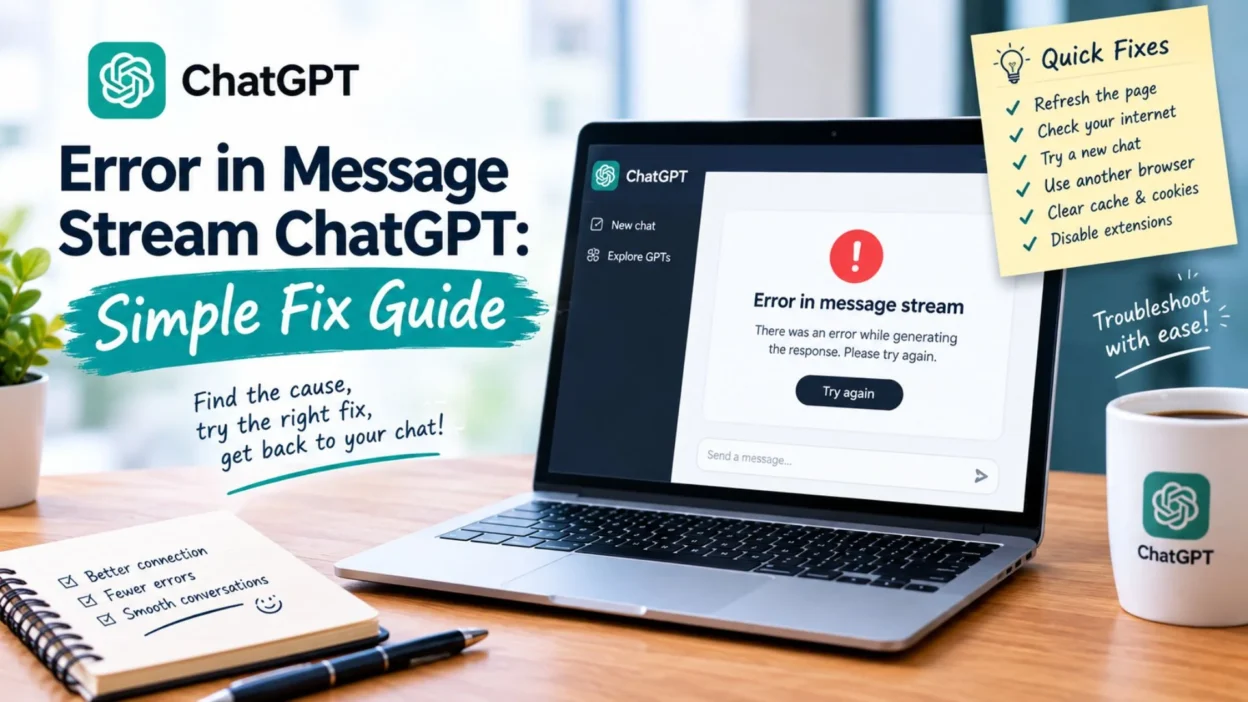
The best approach is to start with simple fixes before changing anything complicated. Refreshing the page, starting a new conversation, checking your connection, or trying another browser can often help. This guide explains the common causes and practical solutions in an easy-to-follow way.
Top Error in Message Stream ChatGPT Fixes
When ChatGPT suddenly stops responding and displays an error, start with the simplest solutions. These quick fixes can help you get back to your conversation without losing unnecessary time.
- Refresh the ChatGPT page and try sending your message again.
- Wait a few moments before resending the same prompt.
- Check whether your internet connection is working normally.
- Open a new ChatGPT conversation and paste your prompt there.
- Try shortening a very long prompt before sending it again.
- If your conversation has become extremely long, start a fresh chat.
- Close unnecessary browser tabs that may be using significant system resources.
- Sign out of ChatGPT and sign back in if the problem continues.
- Try opening ChatGPT in another browser.
- If you are using a browser extension that modifies webpages, temporarily disable it.
- Clear the browser cache if ChatGPT continues showing the same error.
- Try using a private or incognito browser window.
- Check whether other websites are loading normally.
- If the problem happens only with one conversation, try creating a new chat.
- Save your important prompt somewhere else before refreshing or restarting the conversation.
- If the issue continues across different browsers and devices, wait and try again later.
Short Error in Message Stream ChatGPT Solutions
Sometimes you do not need a complicated troubleshooting process. These quick steps can help you test the most common causes in just a few minutes.
- Refresh the page.
- Resend the prompt once.
- Start a new conversation.
- Check your internet connection.
- Shorten the prompt.
- Try another browser.
- Open a private browsing window.
- Sign out and sign back in.
- Clear your browser cache.
- Temporarily disable browser extensions.
- Restart your browser.
- Restart your device if necessary.
- Check whether ChatGPT works in a new conversation.
- Wait briefly before trying again.
- Avoid repeatedly clicking Send when the page appears frozen.
Best Error in Message Stream ChatGPT Troubleshooting Tips
A message stream error can happen for different reasons, so it helps to identify what changes when you test ChatGPT. These practical checks can make troubleshooting much easier.
- If a short prompt works but a long prompt fails, try breaking your request into smaller parts.
- If only one conversation produces the error, continue your work in a new chat.
- If ChatGPT fails in one browser but works in another, investigate browser settings or extensions.
- If several websites are also having trouble loading, check your internet connection first.
- If the error appears after generating a long response, ask ChatGPT to continue in a new message.
- If you repeatedly receive the same error, avoid sending the exact same request over and over.
- Copy your important prompt before refreshing the page.
- Keep a backup of lengthy content when working on an important project.
- Try a simpler request to determine whether the issue affects all prompts or only one.
- If the issue disappears after opening a private window, a browser extension or stored browser data may be involved.
- If the error happens across multiple devices, the problem may not be limited to your browser.
- Give ChatGPT a short break before trying the request again if the service appears unstable.
- When working with a very large conversation, moving the task to a fresh chat can make troubleshooting easier.
- Avoid making several major browser changes at once because you may not know which fix actually worked.
- Test one solution at a time so you can identify the likely cause.
One-Line Error in Message Stream ChatGPT Tips
These quick reminders are useful when you need a simple checklist while troubleshooting the error.
- Refresh ChatGPT before trying more complicated fixes.
- Start a new chat if one conversation keeps failing.
- Check your internet connection when responses stop unexpectedly.
- Shorten very long prompts when errors keep appearing.
- Try another browser if the current one is not responding properly.
- Use private browsing to test whether browser settings are causing trouble.
- Disable unnecessary extensions temporarily.
- Clear cached browser data if the issue continues.
- Save important prompts before refreshing the page.
- Avoid repeatedly submitting the same failed request.
- Try a simple prompt to test whether ChatGPT is responding normally.
- Move a long task into a fresh conversation when necessary.
- Restart your browser if the page becomes unresponsive.
- Sign back into your account if refreshing does not help.
- Wait and try again if the problem appears temporary.
How to Fix Error in Message Stream ChatGPT Quickly
When the error keeps appearing, a few deeper checks can help identify what is interrupting the response. Try these solutions one at a time rather than changing everything at once.
- Sign out of ChatGPT, close the browser, and sign in again.
- Open ChatGPT in a private browsing window to test whether stored browser data is causing the problem.
- Disable recently installed browser extensions and try the conversation again.
- Clear cached data for the ChatGPT website if refreshing does not solve the issue.
- Check whether your browser is fully updated.
- Try a different supported browser if the current one continues to produce errors.
- Restart your internet connection if the connection appears unstable.
- Switch to another reliable network when possible to see whether the connection is responsible.
- Restart your computer if the browser or webpage has become unusually slow.
- Try sending a shorter version of your prompt.
- Break a large request into smaller sections instead of submitting everything at once.
- Start a fresh conversation if the current chat contains a very large amount of content.
- Copy your prompt before refreshing so you do not lose your work.
- If a response stops halfway through, ask ChatGPT to continue instead of immediately resending the entire request.
- Test a simple question in a new chat to see whether normal responses are working.
Why Does Error in Message Stream ChatGPT Happen?
Understanding the possible cause can make the problem much easier to solve. The error may come from your browser, connection, conversation, or a temporary problem with the service.
- A temporary connection interruption can prevent a response from reaching your browser correctly.
- An unstable Wi-Fi connection may interrupt communication while ChatGPT is generating an answer.
- Browser extensions can sometimes interfere with how a webpage functions.
- Corrupted or outdated cached browser data may cause unexpected website behavior.
- A very long conversation can make a particular chat harder to manage.
- A lengthy prompt may take longer to process and can sometimes lead to an interrupted response.
- Temporary service problems can affect response generation.
- Browser performance issues may interfere with a long or demanding ChatGPT session.
- Network restrictions can sometimes affect access to online services.
- A problem limited to one conversation may indicate that starting a new chat could help.
- A problem appearing across several browsers may suggest that the issue is not specific to one browser.
- Repeatedly submitting a failed request can make troubleshooting more confusing.
- Changes in browser settings may occasionally affect website functionality.
- Temporary glitches can disappear without requiring permanent changes to your account or device.
Error in Message Stream ChatGPT After a Long Prompt
Long prompts can contain many instructions, examples, or pieces of text. If an error appears after submitting a particularly large request, simplifying the task may help.
- Divide the request into smaller sections.
- Send the most important instructions first.
- Remove unnecessary repeated instructions from the prompt.
- Paste large pieces of content in separate messages when appropriate.
- Ask ChatGPT to handle one section at a time.
- Save the original prompt before experimenting with shorter versions.
- Start a new conversation if the current thread has become very lengthy.
- Avoid adding unrelated requests to an already complicated prompt.
- Use clear headings when your prompt contains multiple requirements.
- Separate research, writing, and formatting requests when the task becomes too large.
- If a long response fails, request a shorter response first.
- Continue the task in smaller parts after the initial response succeeds.
- Keep important source material backed up outside the chat.
- If one large request fails repeatedly, test a smaller version to identify whether prompt size is involved.
- Do not assume that every long prompt will cause an error; sometimes the issue is temporary.
Error in Message Stream ChatGPT While Generating a Response
It can be especially frustrating when the response starts normally and then suddenly stops. In that situation, avoid immediately repeating the entire request.
- Wait briefly to see whether the response resumes.
- Check whether the page is still responsive.
- Try sending a short follow-up asking ChatGPT to continue.
- Refresh the page if the conversation appears stuck.
- Copy your important prompt before refreshing.
- If refreshing does not help, open a new conversation.
- Paste only the necessary information into the new chat.
- Ask for the remaining content in smaller sections.
- Test another simple prompt after the failed response.
- If simple prompts work but one large task fails, divide that task into smaller requests.
- Avoid repeatedly pressing the Send button.
- Restart the browser if the page remains frozen.
- Try another browser if the issue continues.
- If the same problem appears everywhere, wait and try again later.
What to Do When ChatGPT Error Keeps Returning
Repeated errors can be frustrating, but changing several settings at once is not always the best approach. A gradual troubleshooting process makes it easier to identify the problem.
- Start with a page refresh.
- Test the same request in a new chat.
- Try a shorter prompt.
- Check your internet connection.
- Test another browser.
- Use private browsing.
- Temporarily disable extensions.
- Clear cached website data.
- Restart the browser.
- Restart your device if necessary.
- Test ChatGPT with a simple question.
- Separate large tasks into smaller requests.
- Keep a copy of important prompts and unfinished work.
- Wait before trying again if the service appears temporarily unavailable.
- If nothing changes, check the current service status or official support information for updates.
Simple Messages for Reporting a ChatGPT Error
If you need to explain the problem to a colleague, support team, or someone helping you troubleshoot, these short lines make the issue easy to describe.
- ChatGPT stopped generating my response and displayed an error in the message stream.
- My response started normally but stopped before the answer was complete.
- I received an error after submitting a long prompt.
- ChatGPT is showing the same message stream error whenever I send this request.
- The problem continues even after refreshing the page.
- I tried starting a new conversation, but the error still appeared.
- ChatGPT works for short prompts, but this longer request keeps failing.
- The response stops unexpectedly while ChatGPT is generating it.
- I tested another browser and still received the same error.
- My internet connection appears stable, but ChatGPT continues to show the error.
- The issue seems limited to one conversation.
- I restarted the browser, but the message stream error returned.
- I’m unable to complete the request because the response keeps stopping.
- The error appeared after I submitted a detailed prompt.
- I’m trying again after refreshing the page, but the problem continues.
Best Messages for ChatGPT Error Captions
If you want to share a quick update about a ChatGPT problem, these short captions can describe the situation naturally without sounding overly technical.
- ChatGPT stopped mid-response, and now I’m troubleshooting.
- When your perfect prompt meets an unexpected error. 😅
- ChatGPT was almost done, then the message stream said no.
- Trying again after a little ChatGPT glitch.
- One prompt, one error, and a fresh attempt.
- My ChatGPT conversation decided to take an unexpected break.
- When the answer disappears right before the finish line.
- Refreshing, retrying, and hoping for a smooth response.
- ChatGPT error today, patience test tomorrow.
- That moment when your detailed prompt refuses to load.
- Back to troubleshooting after another interrupted response.
- Sometimes the easiest fix is simply starting fresh.
- My prompt was ready. ChatGPT had other plans.
- A fresh chat can sometimes save the whole task.
- Error appeared, so it’s time for a quick reset.
Copy-Paste Ready ChatGPT Error Messages
These messages are useful when you need to explain a ChatGPT problem to a coworker, friend, client, or support team.
- I’m having trouble getting ChatGPT to complete the response. It keeps showing an error in the message stream.
- ChatGPT started generating the answer but stopped before completing it. I’m going to retry the request.
- I’m receiving an error when submitting this prompt, so I’m breaking the request into smaller parts.
- ChatGPT is currently failing to complete this conversation. I’ll try again after refreshing the page.
- I received an unexpected ChatGPT error while generating the response. I’m checking the connection and trying again.
- The response stopped midway, so I’m starting a fresh conversation to continue the task.
- ChatGPT is showing an error after I submit the prompt. I’m testing a shorter version now.
- I’m unable to complete this task in ChatGPT right now because the response keeps failing.
- The conversation appears to be stuck, so I’m refreshing the page before continuing.
- I’m getting repeated errors from ChatGPT, so I’ll try another browser and continue from there.
- The prompt appears to be too large for this attempt, so I’m dividing it into smaller sections.
- ChatGPT stopped responding during generation. I’ll retry the request rather than sending the same prompt repeatedly.
- I’m experiencing a temporary ChatGPT response problem and will continue once the connection is stable.
- The current conversation is not completing properly, so I’m moving the task to a new chat.
- I received an error while generating the response, but I’ve saved the prompt and can retry it safely.
When to Check ChatGPT Service Status
Not every message stream error comes from your own browser or internet connection. OpenAI’s troubleshooting guidance recommends checking the service status when ChatGPT is failing, especially when the problem continues across different troubleshooting attempts.
- Check the ChatGPT service status when errors suddenly begin appearing across multiple conversations.
- Look for an active incident before spending a long time changing browser settings.
- If the service is experiencing problems, waiting until the issue is resolved may be the simplest solution.
- If ChatGPT works normally for other users but not on your device, investigate your browser or network.
- If the problem continues across browsers, devices, and networks, collect the relevant error details before contacting support.
- Keep your original prompt available so you can retry it when the service is stable.
- Avoid repeatedly submitting the same request during an active service disruption.
- Check the status again later if the problem appears temporary.
- Remember that service availability can vary across different features and users.
- If no service issue is reported, continue with local troubleshooting steps such as refreshing the page, trying another browser, or checking your network.
FAQ About Error in Message Stream ChatGPT
What does error in message stream ChatGPT mean?
It generally indicates that ChatGPT was unable to complete or deliver a response properly. The cause can vary, including temporary service problems, browser issues, network interruptions, extensions, or problems affecting a particular conversation. OpenAI’s troubleshooting guidance recommends steps such as refreshing the page, starting a new chat, trying private browsing, disabling extensions, and checking the service status.
Why does ChatGPT show an error while generating a response?
A response can fail because of a temporary technical issue, connection problem, browser interference, or another issue affecting the conversation. If a response becomes stuck, OpenAI recommends waiting briefly, stopping and regenerating the response, refreshing the page, or starting a new chat.
Can a long ChatGPT conversation cause errors?
A very long conversation can sometimes become difficult to continue smoothly. OpenAI recommends starting a new chat when a conversation is long or has many turns, particularly when ChatGPT becomes stuck or unresponsive.
What should I do if the message stream error keeps happening?
Start by refreshing the page and testing a new conversation. Then try private browsing, another browser, disabling extensions, checking your network, and switching networks or devices if possible. If the problem continues across different environments, checking the service status and contacting support may be appropriate.
Should I keep sending the same prompt after an error?
It is usually better to troubleshoot first rather than repeatedly submitting the same request. Save your prompt, refresh the page, try a new conversation, or shorten the request before attempting it again.
Conclusion
Seeing an error in message stream ChatGPT can be frustrating, particularly when you are working on an important prompt or waiting for a long response. However, the error does not necessarily mean that your prompt, account, or device has a serious problem.
Start with the easiest solutions. Refresh the page, try a new conversation, check your connection, and test another browser or private window. If the conversation is especially long, moving the task to a fresh chat can also help. OpenAI also recommends checking its service status when ChatGPT appears to be experiencing wider problems.
Most importantly, keep a copy of important prompts before troubleshooting. That way, you can retry the task without losing your work. If one method does not help, move to the next rather than repeatedly sending the same failed request.
A ChatGPT error can interrupt your workflow, but with a few simple troubleshooting steps, you can often get back to your conversation and continue your work with much less frustration.

Ryan Mitchell is a professional content writer who specializes in creating heartfelt messages, wishes, greetings, and inspirational quotes for every occasion. He is passionate about helping readers express their thoughts and emotions through meaningful, engaging, and easy-to-share content.