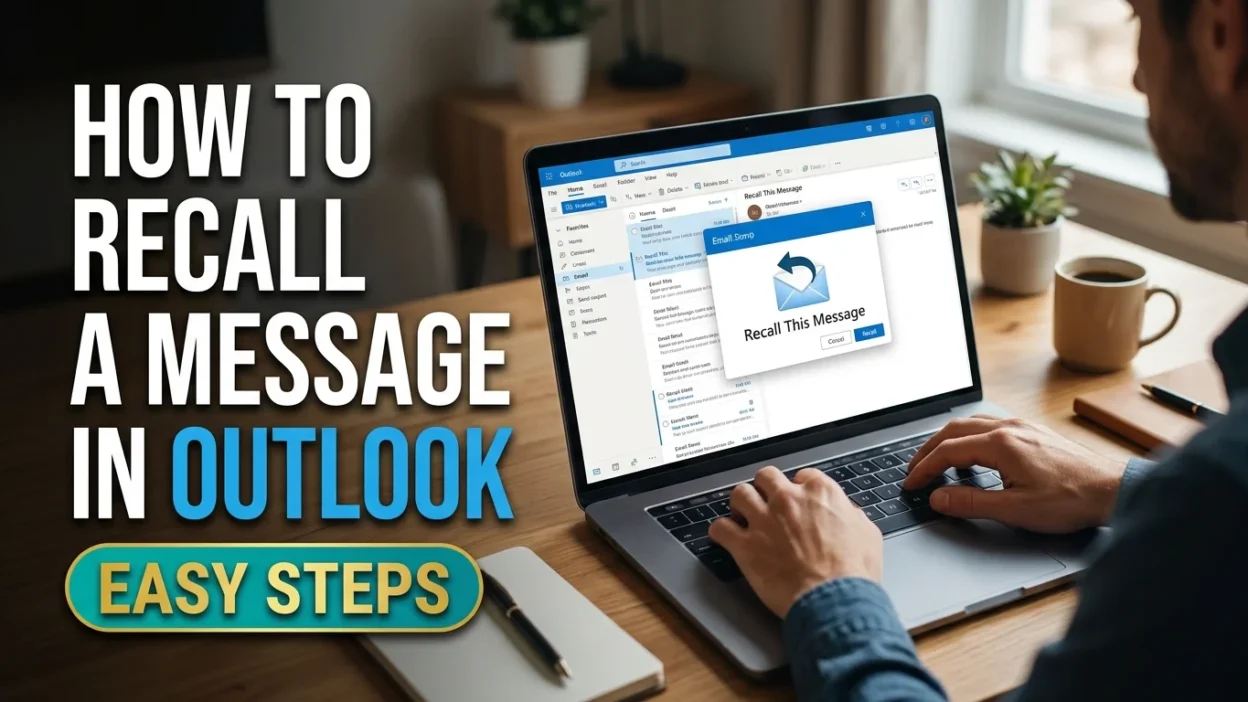
Have you ever clicked Send on an email and immediately noticed a mistake? Maybe you forgot an attachment, sent the message to the wrong person, or spotted an error in your writing. Whatever happened, you probably wished you could take that email back before the recipient read it.
Fortunately, Microsoft Outlook offers a message recall feature that can help in certain situations. If you want to learn how to recall a message in Outlook, the process is relatively simple once you know where to find the option. However, success depends on your email account, the recipient’s account, and whether the message meets the recall requirements.
In this guide, you’ll learn how to recall a sent email in different versions of Outlook, what to do when the recall option is missing, and how to correct an email you have already sent. You’ll also discover the difference between recalling a message and using the Undo Send feature.
What Does It Mean to Recall a Message in Outlook?
Recalling a message in Outlook means attempting to remove an email you have already sent from the recipient’s mailbox. Depending on your account and Outlook version, you may also be able to replace the original email with a corrected message.
For example, imagine you send an important business email but forget to attach the requested document. Instead of leaving the original message as it is, you may be able to recall it and send a replacement with the attachment included.
The recall feature can also help when you notice a mistake in your message or accidentally send information to the wrong colleague within your organization.
However, recalling an email is not the same as deleting it from your Sent Items folder. Removing your copy does not automatically remove the recipient’s copy.
Keep these important points in mind:
- ✉️ Message recall attempts to remove the original email from eligible recipient mailboxes.
- 🔄 Some Outlook versions allow you to replace a recalled message with a corrected email.
- 🏢 Recall generally requires the sender and recipient to use eligible Microsoft 365 work or school accounts within the same organization.
- 📩 You can check a recall report to find out whether the attempt succeeded, failed, or remains pending.
- ⚠️ Recall is not guaranteed, so you should verify the result rather than assume the original email has disappeared.
Understanding these limitations will help you decide whether to recall the message or send a follow-up email instead.
How to Recall a Message in Outlook
If you have sent an email you want to take back, start by opening your Sent Items folder. The exact steps depend on which version of Outlook you use.
Open the Sent Items Folder
First, locate the email you want to recall.
- Open Microsoft Outlook on your computer or in your browser.
- Find the Sent Items folder in the navigation panel.
- Search for the email using its subject line or recipient’s name.
- Open the message you want to recall.
In New Outlook, double-clicking the sent message opens it in a separate window, where you can access the available message actions.
If you use Classic Outlook for Windows, double-click the email to open it in its own window. Selecting the message only in the reading pane may not provide access to the recall command.
Find the Recall Message Option
Once the email is open, look for the recall command in the message toolbar.
- In New Outlook, select Recall Message from the ribbon or the available message actions.
- In Classic Outlook, open the Message tab and look under the available actions for Recall This Message.
- If the option is missing, check whether your account supports message recall.
The location of the command can vary depending on your Outlook version and toolbar layout.
Confirm Your Recall Request
After selecting the recall option, follow the confirmation prompt to submit your request.
Outlook may send a message recall report to your inbox. Open that report to check the outcome.
If you are using a supported version that offers message replacement, you may also be able to send a corrected email after recalling the original.
Remember that submitting a recall request does not automatically mean it has succeeded. Always check the status report when one is available.
Can You Recall an Outlook Email After Sending It?
Yes, but only under certain conditions.
Microsoft Outlook supports message recall for eligible Microsoft 365 work or school accounts when the sender and recipient belong to the same organization. The feature is designed to retrieve messages from recipient mailboxes, and the outcome depends on the supported recall process.
For example, if you accidentally send an email to a colleague within your organization, you may be able to recall it using the available command.
However, if you send the same email to a personal Gmail account or someone outside your organization, the standard Outlook recall feature generally will not work.
Here are some important considerations:
- 🏢 Organizational accounts: Both parties generally need eligible Microsoft 365 work or school accounts within the same organization.
- 📬 Recipient’s mailbox: The recall process depends on whether the recipient’s mailbox supports the operation.
- 🔍 Message status: Recall eligibility and results depend on the account configuration and applicable service behavior.
- ⚙️ Administrator settings: Your organization’s IT administrator may restrict or disable the feature.
- 📱 Outlook version: The available steps and options can vary between Classic Outlook, New Outlook, and mobile apps.
If recall is unavailable, don’t panic. You can send a follow-up email explaining the mistake, provide the missing attachment, or clarify the information in your original message.
A quick, professional correction is often the most practical solution.
How to Recall a Message in Outlook Web
If you use Outlook through a web browser, you may be able to recall a sent email without installing the desktop application. However, the feature is generally available for eligible Microsoft 365 work or school accounts rather than personal Outlook.com accounts.
Follow these steps to check whether you can recall your message.
- 🌐 Open Outlook in your web browser and sign in to your account.
- 📩 Select Sent Items from the folder list.
- 🔎 Find the email you want to recall and open it.
- ⚙️ Look for Recall Message in the message toolbar or available actions.
- ✅ Select the recall option if it appears, then follow the instructions.
- 📬 Check your inbox for a recall status report to confirm the result.
If you cannot find the recall option, your account may not support the feature. In that situation, sending a correction email is a practical alternative.
Remember that the exact interface may differ depending on your organization’s Microsoft 365 configuration and the version of Outlook available to you.
How to Recall a Message in Classic Outlook for Windows
Classic Outlook for Windows has a dedicated recall command for eligible email accounts. The command is usually available when you open a sent message in its own window.
Follow these instructions:
- 💻 Open Classic Outlook on your Windows computer.
- 📂 Select Sent Items in the folder list.
- ✉️ Double-click the email you want to recall.
- 📨 Open the Message tab at the top of the window.
- ⚙️ Select Actions and then choose Recall This Message, if available.
- 🔄 Choose whether to delete unread copies or delete unread copies and replace the message, depending on the options shown.
- ✅ Confirm your selection to submit the recall request.
After submitting your request, review the recall report to determine whether the operation succeeded.
If the Actions menu or recall command is missing, confirm that you are using Classic Outlook and an eligible organizational account.
You should also remember that recalling an email is not a substitute for checking its status. The recipient may already have seen the original message, and the recall may not succeed in every situation.
How to Replace a Recalled Email in Outlook
Sometimes, you don’t want to remove an email without sending a corrected version. Instead, you may want to replace the original message with an updated one.
Outlook offers a replacement option in supported recall workflows.
For example, imagine you send a client a proposal containing an incorrect price. You notice the mistake immediately and want to provide the correct information.
Here’s what to do:
- 📩 Open Sent Items and select the original email.
- ⚙️ Open the recall command using the steps for your Outlook version.
- 🔄 Select the option to delete unread copies and replace the message, if available.
- ✍️ Make the necessary corrections to the replacement email.
- 📎 Add any missing attachments or information.
- 🚀 Send the corrected message.
Once the replacement is sent, check the available recall report to determine whether the original email was successfully recalled.
Keep in mind that a replacement message does not guarantee that the recipient will never see the original. If the recall fails, the recipient may still have access to the first email.
For this reason, it is wise to ensure that the corrected message is accurate and complete before sending it.
What Is the Difference Between Recall Message and Undo Send?
Recall Message and Undo Send may seem similar, but they work differently.
Undo Send gives you a brief opportunity to cancel an outgoing email before it is fully sent. In contrast, Recall Message attempts to retrieve an email that has already been delivered to an eligible recipient’s mailbox.
Understanding the difference can help you choose the right option.
- ⏪ Undo Send: Cancels an outgoing message during a short delay after you press Send.
- ✉️ Recall Message: Attempts to remove an already-sent email from eligible recipient mailboxes.
- ⏱️ Undo Send timing: The cancellation window depends on the email service and your settings.
- 🏢 Recall requirements: Message recall generally requires eligible organizational accounts and compatible mailbox conditions.
- 🔍 Confirmation: Recall reports can help you check whether a recall attempt succeeded.
For example, if you notice a spelling mistake immediately after clicking Send and Undo Send is still available, use it to stop the message from going out.
However, if the email has already been sent and you use a supported Microsoft 365 work account, the recall feature may be an option.
The best approach is to use Undo Send for immediate cancellations and Message Recall for eligible messages that have already been sent.
What to Do If You Cannot Recall a Message in Outlook
Sometimes, the recall command is unavailable or your attempt fails. Although this can be frustrating, you still have several ways to handle the situation professionally.
The right response depends on the type of mistake and whether the email contains sensitive information.
- 💬 Send a correction: If the message contains an incorrect detail, send a follow-up email with the correct information.
- 📎 Send the missing attachment: If you forgot a file, send another message with the attachment included.
- ✍️ Clarify your wording: If your email was unclear, explain what you intended to communicate.
- 📞 Contact the recipient: For an important mistake, a quick call or direct message may help prevent confusion.
- 🔐 Report sensitive disclosures: If you accidentally sent confidential information to the wrong person, follow your organization’s security or data incident procedures promptly.
- 🛑 Avoid repeated messages: One clear correction is often more effective than sending several follow-ups.
For example, if you forgot to attach a document, you could write:
“Apologies for the oversight. I forgot to include the attachment in my previous email. Please find it attached here. Thank you for your understanding.”
If you sent confidential information to the wrong recipient, do not assume that deleting your own sent message will protect the information. Follow the appropriate reporting procedures and seek guidance from your organization’s IT or security team.
A prompt and professional response can help reduce confusion, even when recalling the original message is impossible.
Frequently Asked Questions?
Can I recall a message in Outlook after one day?
You may be able to recall an email after one day if your account and message meet the applicable recall requirements. There is no universal one-day cutoff for every supported organizational setup. Check whether the recall option is available and review the resulting status report.
Can I recall an Outlook email sent to Gmail?
Generally, no. Outlook’s standard message recall feature is designed for eligible Microsoft 365 organizational mailboxes. If you sent an email to a Gmail account, you will usually need to send a correction or contact the recipient directly.
Does Outlook notify the recipient when I recall an email?
The result depends on the recall process and mailbox configuration. Do not assume that a recall is invisible to the recipient. Check the recall report and remember that the recipient may already have read the original email.
Why can’t I see Recall Message in Outlook?
The option may be missing because you use an unsupported account, an incompatible Outlook version, or a mailbox configuration that does not support recall. It may also be unavailable in certain mobile or personal email setups. Check your account type and Outlook version first.
Can I recall an email in Outlook on my phone?
The recall feature is not consistently available across Outlook mobile configurations. If you cannot find it in the app, try an eligible desktop or web version of Outlook. If the recall option remains unavailable, send a correction email instead.
Conclusion
Learning how to recall a message in Outlook can save you from unnecessary confusion when you send an email with incorrect information, forget an attachment, or contact the wrong person. However, the feature has specific requirements, so it is important to understand when it works and how to check the result.
Start by opening Sent Items and selecting the message you want to recall. Next, look for the recall option in your version of Outlook. If your account supports the feature, follow the prompts and review the recall report.
If recall is unavailable, you can still resolve many mistakes by sending a clear correction or contacting the recipient directly. For sensitive information, follow your organization’s security procedures rather than relying on message deletion alone.
Ultimately, the best way to avoid email mistakes is to review the recipient, subject line, message content, and attachments before clicking Send. If you make an error, act quickly and communicate clearly.

Ryan Mitchell is a professional content writer who specializes in creating heartfelt messages, wishes, greetings, and inspirational quotes for every occasion. He is passionate about helping readers express their thoughts and emotions through meaningful, engaging, and easy-to-share content.