- Sending an email and realizing a few seconds later that something is wrong can be stressful. Maybe you attached the wrong file, forgot an important detail, or accidentally sent the message to the wrong person. Fortunately, Outlook includes a recall message Outlook feature that may help in certain situations.
- However, email recall is not a magic undo button. Whether it works depends on factors such as the type of Outlook account, where the recipient’s mailbox is hosted, and whether the original message has already been opened. Therefore, knowing the limitations can save you time and help you choose the right solution.
- If you need to recall message Outlook, the process is relatively straightforward when the feature is available. You can also send a corrected message when recall is unlikely to work. So, this guide covers the essential steps, practical tips, and alternatives you can use after sending an email by mistake.
Top Recall Message Outlook Tips
- Before trying to recall an email, first confirm that the message was actually sent. Then, open your Sent Items folder and locate the email you want to retrieve.
- Outlook’s recall feature is generally associated with certain Microsoft 365 or Exchange-based work and school environments. Therefore, the option may not be available for every personal or external email account.
- A recall may also depend on the recipient’s mailbox and Outlook setup. As a result, sending an email to someone outside your organization can make recall less reliable or unavailable.
- If the recipient has already opened the email, recalling it may not produce the result you expected. Consequently, acting quickly is important when you notice a mistake.
- If the message contains sensitive information, do not assume that recall guarantees removal. Instead, consider contacting the recipient directly and asking them to delete the message.
- When the recall option is unavailable, sending a clear correction email is often the fastest practical solution.
- If you sent the wrong attachment, send the correct file immediately and briefly explain the mistake.
- If the mistake involves the recipient, contact the unintended recipient as soon as possible rather than relying entirely on Outlook recall.
How to Recall Message Outlook
- The exact Outlook interface can vary depending on the version and account type. However, the general process starts in Sent Items.
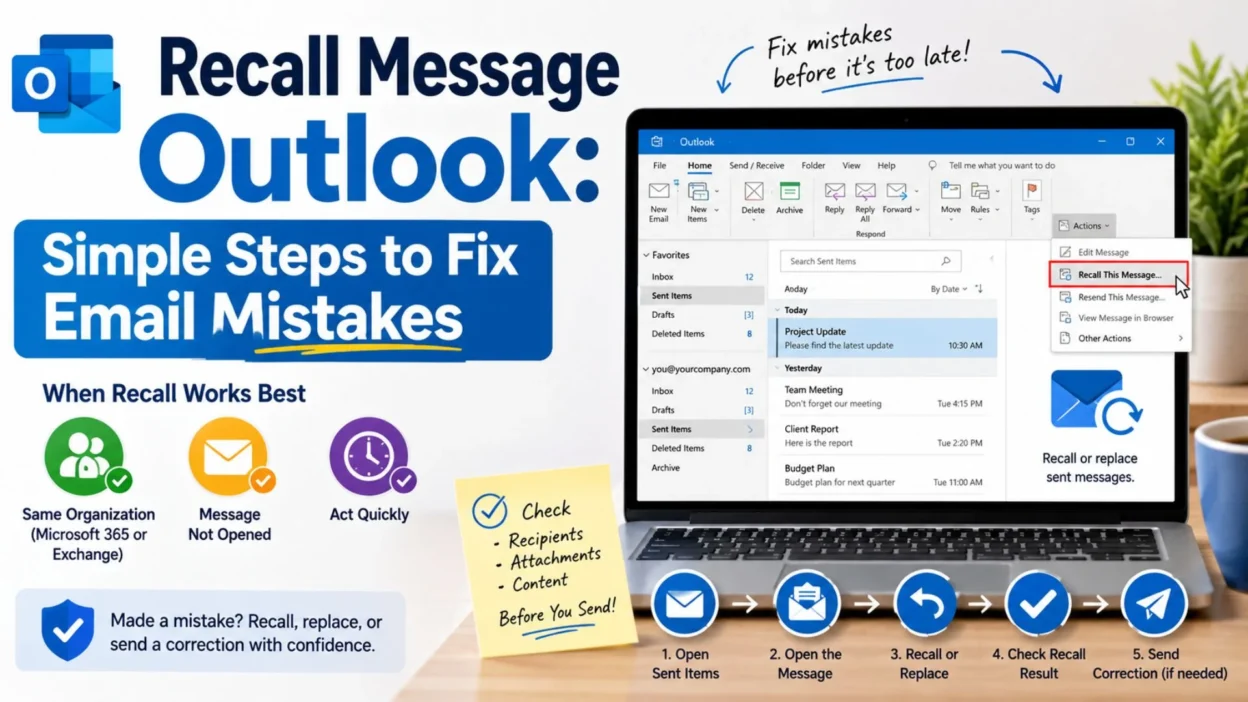
- Open Outlook and go to Sent Items.
- Find the email you want to recall.
- Open the message in its own window rather than simply viewing it in the reading pane.
- Look for the recall option in the message or actions menu.
- Choose the option to Recall This Message when it is available.
- Outlook may provide options to delete unread copies or replace the original message with a corrected version.
- Choose the option that best matches your situation.
- Confirm the action and allow Outlook to process the recall request.
- If available, Outlook can provide a recall notification that indicates whether the attempt succeeded or failed.
When Recall Message Outlook May Work
- Recall is most useful when the sender and recipient are working within a compatible Microsoft 365 or Exchange organization.
- For example, an employee may accidentally send an internal message with an outdated attachment. If the organizational setup supports recall and the recipient has not opened the email, the recall may have a better chance of succeeding.
- However, success is never something you should assume automatically. The recipient’s environment and the message status can affect the result.
- Therefore, if the email is important or sensitive, take additional action instead of waiting for the recall result.
Short Recall Message Outlook Guide
- Open Sent Items.
- Select the email you want to recall.
- Open the message in a separate window.
- Find the recall command.
- Choose Recall This Message if available.
- Select whether to delete or replace the unread copy.
- Confirm the recall request.
- Check the recall notification when available.
- Contact the recipient if the email is sensitive.
- Send a corrected message if recall does not work.
- Act quickly because delays can reduce the usefulness of recall.
- Do not assume that recalling an email guarantees permanent removal.
Best Recall Message Outlook Practices
- The best approach is to treat recall as a helpful option rather than a guaranteed solution. That mindset can prevent unnecessary stress when Outlook cannot retrieve a message.
- First, determine what went wrong. If the problem is a spelling mistake, a simple correction may be enough. On the other hand, if you sent confidential information to the wrong person, you should respond more quickly and directly.
- Next, check whether the recall option is available. If it is, use it as soon as possible. Meanwhile, prepare a follow-up message in case the recall fails.
- Most importantly, avoid sending several confusing emails. A short, professional correction is usually better than a long explanation.
- For example, if you accidentally attached an old document, you can send the correct attachment with a brief note asking the recipient to disregard the previous file.
- Similarly, if you made a small wording mistake, you may not need to recall the message at all. Instead, a quick clarification can solve the issue without creating additional confusion.
What to Do Before You Recall an Email
- Check the To, Cc, and Bcc fields.
- Confirm whether the message contains sensitive information.
- Check whether the attachment is correct.
- Review the subject line.
- Decide whether a recall is actually necessary.
- Open the sent message and look for the recall option.
- If the message is urgent or sensitive, prepare to contact the recipient directly.
Why Acting Quickly Matters
- Time matters when you want to recall message Outlook. Once a recipient opens the email, your options can become more limited.
- Therefore, do not spend several minutes searching for complicated solutions if the mistake is serious. Open Sent Items immediately and check whether recall is available.
- If recall is not possible, send a correction or contact the recipient. In many real-world situations, honest and quick communication is more effective than repeatedly attempting to retrieve the original message.
Recall Message Outlook After Sending
- If you want to recall message Outlook after sending, start by opening your Sent Items folder.
- Find the email that contains the mistake and open it in a separate message window.
- Look for the recall command within Outlook’s available message actions.
- If the recall option appears, select it and follow the instructions displayed by Outlook.
- Depending on your Outlook environment, you may be able to delete unread copies or replace the original message with an updated version.
- After submitting the request, check any recall notification Outlook provides.
- If the recall succeeds, the recipient may no longer see the original unread message.
- However, if the recipient has already opened the email or the account setup does not support recall, the result may be different.
Can You Recall an Email to Anyone?
- Not necessarily. Outlook’s recall functionality has important limitations.
- The feature is most useful in compatible organizational environments, particularly where sender and recipient use Microsoft 365 or Exchange within the same organization.
- If you send an email to an external address, such as a recipient using another email provider, you should not assume that Outlook can remove the message from their mailbox.
- Similarly, different Outlook versions and account configurations can affect which options appear.
- Therefore, always check whether the recall option is actually available in your Outlook account before relying on it.
Recall Message Outlook When the Email Is Already Opened
- One of the biggest limitations is whether the recipient has already opened the message.
- If the email has already been read, recalling it may not work as intended. Consequently, speed is important when you discover an error immediately after sending.
- However, don’t panic if the message has already been opened. You still have practical options.
- If the mistake is minor, send a short correction.
- If you attached the wrong document, send the correct attachment and ask the recipient to disregard the previous version.
- If you sent confidential information to the wrong person, contact them directly and request that they delete the message.
- Being clear and professional is usually better than sending multiple confusing follow-ups.
Recall Message Outlook for the Wrong Attachment
- Accidentally attaching the wrong file is one of the most common reasons people want to recall an email.
- First, check whether Outlook provides the recall option. If it does, you can attempt to remove the unread copy or replace it with a corrected version when supported.
- Meanwhile, prepare the correct attachment so you can send it immediately if necessary.
- A simple follow-up could explain that the previous attachment was incorrect and that the new file should be used instead.
- If the attachment contains sensitive information, take the situation more seriously. Contact the recipient directly rather than depending only on the recall process.
- Also, avoid sending repeated versions of the same document. Clearly label the correct file so there is no confusion about which attachment should be used.
Recall Message Outlook for a Wrong Recipient
- Sending an email to the wrong person can be more stressful than making a simple typo.
- If you notice the mistake quickly, check whether Outlook allows you to recall the message.
- However, if the recipient has already received or opened the email, recall may not completely solve the problem.
- In that situation, direct communication is important. Politely explain the mistake and ask the recipient to delete the message if appropriate.
- If the email contains private business information, financial details, or other sensitive content, notify the appropriate person within your organization according to your workplace procedures.
- Most importantly, do not assume that a recall attempt means the information has disappeared permanently.
Short Recall Message Outlook Alternatives
- If recall does not work, a correction email can often solve the problem.
- Wrong attachment: Send the correct file and ask the recipient to disregard the earlier attachment.
- Wrong information: Send a corrected version with the accurate details.
- Wrong recipient: Contact the recipient and politely request deletion.
- Typing mistake: Send a short clarification instead of creating unnecessary confusion.
- Missing attachment: Send the original email again with the required file attached.
- Sensitive information: Contact the appropriate person promptly and follow your organization’s security procedures.
- Incorrect subject: Send a corrected message with a clear subject line.
Best Recall Message Outlook Habits
- The easiest way to avoid email mistakes is to slow down before pressing Send.
- Create a short review habit. Check the recipient, subject, message body, attachments, and sensitive information before sending.
- If you frequently send important business emails, consider adding a delay before messages leave your mailbox when your organization’s Outlook setup allows it.
- A brief delay can give you extra time to catch an error before the email reaches the recipient.
- Also, avoid adding recipients until the message is ready. This can reduce the risk of accidentally sending a draft to the wrong person.
- For sensitive emails, double-check the To and Cc fields carefully. Bcc should also be reviewed when you are communicating with a larger group.
- Finally, remember that prevention is more reliable than recall. The recall feature can help, but careful review before sending is even better.
Best Practices Before Using Recall Message Outlook
- Stay calm and act quickly.
- Check whether recall is available.
- Confirm who received the message.
- Determine whether the email contains sensitive information.
- Prepare a corrected version if needed.
- Contact the recipient when direct communication is necessary.
- Avoid sending multiple confusing follow-ups.
- Use a professional and honest explanation.
- Review attachments before sending future emails.
- Consider an appropriate send delay for important messages.
When You Should Send a Correction Instead
- Not every mistake requires an email recall. Sometimes, a correction is actually clearer.
- For example, if you accidentally wrote the wrong meeting time, sending a corrected time immediately may be easier than attempting to recall the first message.
- Likewise, a minor spelling mistake usually does not justify a recall. A short clarification can be enough.
- Therefore, consider the seriousness of the error before taking action. If the mistake could cause confusion, inconvenience, or a security concern, respond promptly.
- If the issue is minor, avoid creating more email traffic than necessary.
Best Recall Message Outlook Alternatives
- If Outlook recall is unavailable, the next best option is often a correction email.
- For a missing attachment, send the correct file immediately and clearly identify it as the updated attachment.
- For incorrect information, send a brief correction instead of writing a lengthy explanation.
- If you sent the email to the wrong person, contact the recipient directly and politely ask them to delete it.
- If the message contains sensitive information, notify the appropriate person in your organization and follow your workplace security procedures.
- If the issue is only a minor typo, a follow-up clarification may be easier than attempting a recall.
- When an email needs a complete replacement, resend the message with the corrected content, recipient details, or attachment.
Use Undo Send When Available
- Recall and Undo Send are not the same feature.
- Message recall happens after an email has been sent and depends on specific account and recipient conditions. By contrast, Undo Send gives you a short opportunity to cancel a message before it actually leaves your account.
- Therefore, a short sending delay can be useful when you frequently notice mistakes immediately after clicking Send.
- If you often send important emails quickly, this small delay can give you extra time to notice an incorrect recipient, attachment, or sentence.
One-Line Recall Message Outlook Tips
- Act quickly when you notice an email mistake.
- Check Sent Items immediately after sending.
- Open the sent message in its own window.
- Use Recall Message when the option is available.
- Check the recall result after submitting the request.
- Do not assume every sent email can be recalled.
- Recall generally works best before the recipient opens the message.
- Personal Outlook accounts may not support traditional message recall.
- A correction email can be better than a failed recall attempt.
- Contact the recipient directly when the situation is urgent.
- Double-check attachments before sending future emails.
- Review recipients carefully before clicking Send.
- Consider a send delay for important messages.
- Keep sensitive information out of unnecessary email chains.
- Stay calm and communicate clearly after an email mistake.
Best Messages for Recall Message Outlook Situations
If you need to send a correction after an unsuccessful recall, these short messages can help you respond professionally.
- Wrong attachment: “Please disregard my previous email and attachment. I’ve attached the correct file here. Thank you for your understanding.”
- Incorrect information: “Please disregard the information in my previous message. I’m sending the corrected details below.”
- Missing attachment: “I apologize for missing the attachment in my previous email. Please find the correct file attached here.”
- Wrong recipient: “I’m sorry, this message was sent to you by mistake. Please disregard and delete the previous email.”
- Updated information: “Please use the information in this message instead of my previous email. Thank you for your understanding.”
- Small mistake: “A quick correction to my previous message: please note the updated information below.”
- Professional correction: “Please disregard my previous email, as it contained an error. I apologize for the confusion and appreciate your understanding.”
Copy-Paste Ready Recall Message Outlook Responses
- For a wrong attachment: “Hi, please disregard the attachment in my previous email. I noticed that I sent an outdated file. The correct document is attached here. Sorry for the confusion, and thank you for your understanding.”
- For a missing attachment: “Hello, I realized that I forgot to include the attachment in my previous message. Please find the requested document attached to this email. Apologies for the oversight.”
- For incorrect details: “Please disregard the details in my previous email. I noticed an error and have provided the corrected information below. I apologize for any confusion this may have caused.”
- For a sensitive mistake: “I apologize for sending the previous message to you in error. Please disregard and delete that email. Thank you for your cooperation and understanding.”
- For a simple correction: “Quick correction to my previous email: please use the updated information below. Sorry for the confusion, and thank you for your understanding.”
Gmail, Outlook.com, and Work Outlook Are Different
One common source of confusion is assuming that every Outlook account has the same recall capability.
However, Outlook features can vary depending on the account type and organization. Traditional message recall is generally associated with supported work or school email environments rather than every personal email account.
Therefore, if you are using a personal Outlook address, do not automatically expect the traditional recall process to be available. Instead, look for other options, such as a short send delay or a correction message.
This distinction matters because searching for a recall message Outlook solution without considering your account type can lead to unnecessary confusion.
Frequently Asked Questions About Recall Message Outlook
Can I recall an Outlook email after sending it?
- You may be able to recall an email when your Outlook account and the recipient’s email environment support the feature. However, recall is not available in every situation.
Why don’t I see the Recall Message option?
- The option may be unavailable because of your account type, Outlook version, organization settings, or recipient’s email environment. Therefore, not seeing the option does not necessarily mean something is wrong with Outlook.
Can I recall an email sent to Gmail?
- You should not assume that Outlook can remove a message from an external Gmail mailbox. If the recipient is outside your supported organization, a correction message is usually the safer approach.
What happens if the recipient already opened the email?
- Recall may not work as intended once the recipient has opened the message. Consequently, contact the recipient directly if the email is important or sensitive.
What should I do if Outlook recall fails?
- Send a corrected message, ask the recipient to disregard the previous email, or contact them directly when appropriate. If sensitive information was involved, follow your organization’s security procedures.
How to Avoid Needing Recall Message Outlook
The easiest way to handle an email mistake is to prevent it before it happens. A few seconds of review can save much more time later.
- Check the recipient’s address before sending.
- Review the Cc and Bcc fields carefully.
- Confirm that every attachment is correct.
- Read the subject line once more.
- Check dates, times, names, and numbers.
- Remove unnecessary recipients.
- Avoid sending sensitive information to personal addresses unless appropriate.
- Consider a short sending delay if your Outlook setup supports it.
- Review important messages one final time before clicking Send.
- Keep frequently used email templates updated.
- When possible, draft sensitive messages first and review them before sending.
Final Thoughts on Recall Message Outlook
Sending an email with the wrong attachment, incorrect information, or unintended recipient can be an uncomfortable experience. Still, one mistake does not have to become a major problem. Understanding how recall message Outlook works gives you a practical way to respond when the feature is available.
At the same time, remember that recall has limits. It is not a universal way to erase an email, and success can depend on your account, the recipient’s account, the organization, and whether the message has already been opened.
If recall is unavailable or unsuccessful, do not panic. Instead, send a clear correction, provide the right attachment, or contact the recipient directly. For accounts that offer a send-delay feature, that option can also give you a useful moment to cancel a message before it is sent.
Most importantly, build a simple review habit before sending important emails. A few seconds spent checking recipients, attachments, and details can often prevent the need for recall altogether.
When an email mistake happens, act quickly, communicate clearly, and focus on the solution.

Ryan Mitchell is a professional content writer who specializes in creating heartfelt messages, wishes, greetings, and inspirational quotes for every occasion. He is passionate about helping readers express their thoughts and emotions through meaningful, engaging, and easy-to-share content.