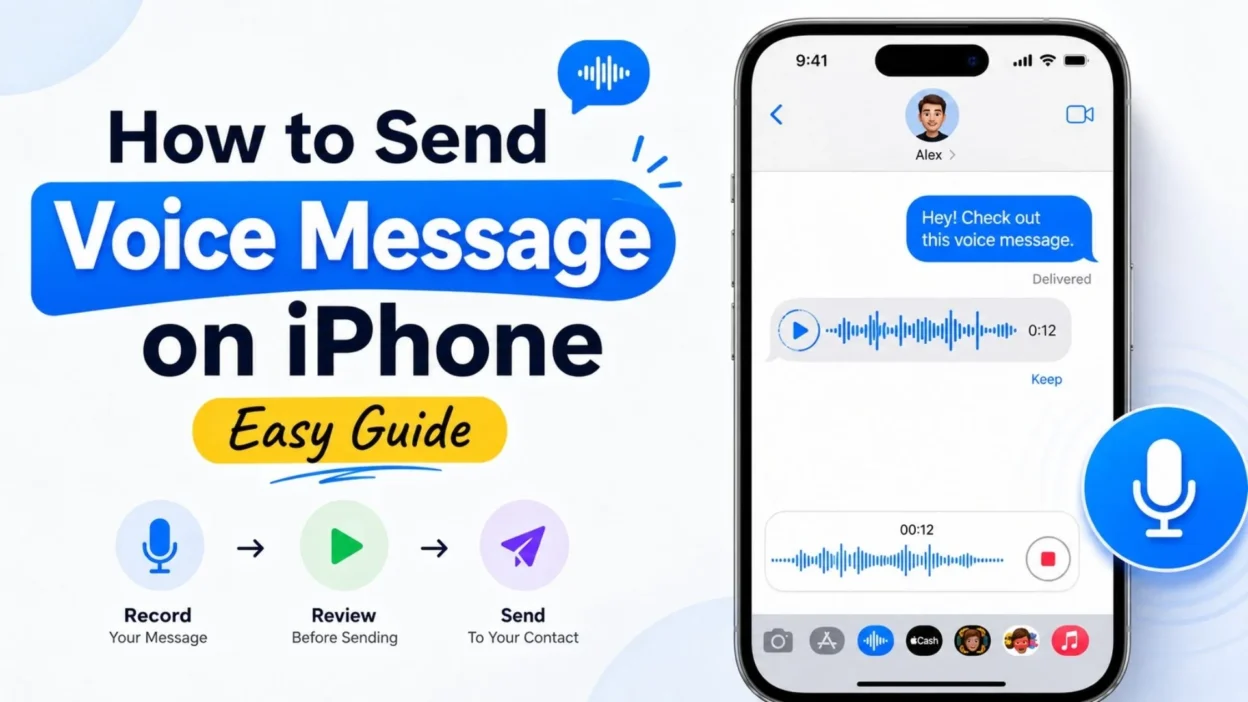
Sending a voice message on an iPhone can be much easier than typing a long text, especially when you want to explain something quickly or let someone hear your voice. Whether you are new to iPhone or simply cannot find the right button, the process is straightforward once you know where to look.
If you have ever wondered how to send voice message on iPhone, you can do it directly through the Messages app. You can record your message, listen to it, and send it to your contact with just a few taps. 🎙️
This guide walks you through the basic process in simple steps. It also covers useful tips, common problems, and easy alternatives so you can send voice messages with confidence.
How to Send Voice Message on iPhone
The quickest way is through the built-in Messages app. You do not need to install another app for a basic voice message.
- Open the Messages app on your iPhone.
- Open an existing conversation or start a new message.
- Look near the text field for the audio/voice message button.
- Tap the voice-message button to begin recording.
- Speak clearly into your iPhone’s microphone.
- Stop the recording when you finish.
- Review the message if the available controls allow it.
- Tap the Send button to send your voice message.
The exact appearance of the controls can vary depending on your iOS version, but the basic process remains simple.
How to Record a Voice Message on iPhone
Before sending a voice message, you need to record your voice. Finding the recording control is usually the most confusing part for first-time users.
- Open Messages and choose the person you want to contact.
- Tap the voice-message control beside the message field.
- Start speaking after the recording begins.
- Keep your iPhone reasonably close so your voice is clear.
- Finish speaking when you have said everything you want.
- Use the available playback option to check the recording when supported.
- Send the recording when you are satisfied with it.
For a better recording, try to speak naturally rather than too close to the microphone. A quiet room can also make your voice easier for the recipient to understand.
How to Send Voice Message on iPhone to a Contact
You can send a voice message to someone already saved in your contacts or to a new number through Messages.
- Open the Messages app.
- Tap the button to create a new message.
- Enter the person’s name or phone number.
- Open the conversation.
- Select the voice-message option.
- Record your message.
- Tap the send control.
A voice message is especially useful when typing would take longer than simply speaking. It can also make casual conversations feel more natural.
Short Voice Messages to Send
Sometimes you only need a few words instead of a long recording. Short voice messages are perfect for quick updates and casual conversations.
- “Hey, just wanted to say hi!”
- “I’ll call you when I get home.”
- “Thanks for helping me today!”
- “I’m on my way.”
- “Let me know when you’re free.”
- “I just wanted to check in.”
- “Talk to you soon!”
- “Hope you’re having a great day.”
- “I’ll send you the details later.”
- “Sorry, I missed your call.”
Best Voice Messages for Sharing
A voice message can communicate more personality than a regular text. These ideas work well when you want your recording to sound natural and genuine.
- “I thought it would be easier to tell you this than type it all out.”
- “I just wanted you to hear this directly from me.”
- “Whenever you get a chance, listen to this.”
- “I have a quick update for you.”
- “I wanted to explain everything properly.”
- “Thanks for being there when I needed you.”
- “I hope this message makes your day a little better.”
- “I have something funny to tell you.”
- “Listen when you have a minute—I have a story for you.”
- “I wanted to say this in my own voice.”
One-Line Voice Message Ideas
If you want your recording to be quick and effortless, one-line messages are a great choice.
- “Just checking in to see how you’re doing.”
- “Call me whenever you get a chance.”
- “I’ll be there soon!”
- “Hope everything is going well.”
- “Thanks again for everything.”
- “I’ll talk to you later.”
- “Have a wonderful day!”
- “I’m thinking of you.”
- “Let’s catch up soon.”
- “I’ll explain everything when we talk.”
Best Voice Messages for Different Situations
The right voice message depends on what you want to say and how quickly you need to say it.
- “I wanted to give you a quick update about today.”
- “Hey, I’m free now if you want to talk.”
- “I just remembered something I wanted to tell you.”
- “Everything is fine, so don’t worry.”
- “I’ll explain the whole thing when we talk.”
- “Thanks for getting back to me!”
- “I wanted to make sure you received my message.”
- “Let me know what you think when you hear this.”
- “I have a quick question for you.”
- “I’ll get back to you as soon as I can.”
Voice Messages for Friends
Voice messages are an easy way to keep conversations with friends casual and personal.
- “Hey, what are you up to?”
- “I have the funniest story to tell you.”
- “You won’t believe what just happened!”
- “Let’s catch up soon.”
- “I miss our random conversations.”
- “Tell me everything when you get a chance.”
- “I was just thinking about our last conversation.”
- “You have to hear this!”
- “Call me when you’re free.”
- “Hope your day is going well, buddy.”
Voice Messages for Family
A quick recording can be useful when you want to share an update without typing a long text.
- “Hey, just wanted to let you know I’m doing fine.”
- “I’ll call you later when I have some time.”
- “Thanks for checking on me.”
- “I wanted to tell you about my day.”
- “Everything is going according to plan.”
- “I’ll be home soon.”
- “Take care and talk to you later.”
- “I hope everyone is doing well.”
- “Thanks for always being there.”
- “I’ll keep you updated.”
Voice Messages for Quick Updates
When typing feels inconvenient, a short recording can get the information across quickly.
- “I’m running a little late.”
- “I’ve arrived.”
- “I’m leaving now.”
- “The plans have changed.”
- “I’ll send you the address.”
- “I’m almost there.”
- “I’ll check and let you know.”
- “The meeting is finished.”
- “I’ll message you again later.”
- “Everything is sorted now.”
How to Send Voice Message on iPhone Without Typing
If you do not want to type your entire message, recording your voice can save time.
- Open the conversation in Messages.
- Find the voice-message control near the text box.
- Tap it to start recording.
- Say your message naturally.
- Stop recording when you finish.
- Check the recording if playback is available.
- Send it to the recipient.
This can be particularly convenient when your message is long or when you are busy doing something else.
How to Send Voice Message on iPhone Clearly
A few simple habits can make your recordings easier to hear.
- Record in a reasonably quiet place.
- Speak at your normal pace.
- Keep the microphone unobstructed.
- Avoid covering the microphone with your hand.
- Pause briefly between important points.
- Keep background noise as low as possible.
- Listen to the recording when a preview is available.
- Keep very long messages focused and easy to follow.
Voice Message Captions
These short captions can accompany a voice message when you want to give the recipient some context.
- “Listen when you have a minute. 🎙️”
- “A quick message in my own voice.”
- “This was easier to say than type.”
- “Here’s the update I promised.”
- “Press play when you’re ready.”
- “A little voice note for you.”
- “I have something to tell you.”
- “Here’s what happened today.”
- “Quick explanation coming your way.”
- “Sometimes a voice says it better.”
Copy-Paste Ready Voice Message Ideas
These simple lines are easy to read aloud when you want to record a quick voice message on your iPhone.
- “Hey, I just wanted to check in and see how everything is going.”
- “I’m sending a voice message because this is much easier to explain out loud.”
- “Whenever you get a chance, give this message a listen.”
- “I wanted to share a quick update with you.”
- “Thanks for taking the time to listen to my message.”
- “I hope everything is going well on your side.”
- “I’ll tell you the rest when we get a chance to talk.”
- “Just wanted to let you know that everything is okay.”
- “I’m heading out now, so I’ll talk to you later.”
- “Let me know what you think after you hear this.”
How to Send Voice Message on iPhone in Messages
If you are still wondering how to send voice message on iPhone, the process is mainly about finding the audio-message control inside your conversation.
- Open Messages.
- Select the conversation where you want to send the recording.
- Tap the voice-message option near the text field.
- Record your message.
- Finish the recording.
- Review it when the available controls allow you to do so.
- Tap Send.
If you cannot immediately see the voice-message option, check the controls around the message field. The appearance can differ between iOS versions.
What to Do If Voice Messages Aren’t Working
Sometimes a voice message may not work as expected. A few basic checks can help identify the problem.
- Make sure your iPhone has enough battery and is working normally.
- Check that the Messages app is responding properly.
- Make sure the microphone is not blocked.
- Try recording again in a quieter location.
- Check your internet or cellular connection if sending requires connectivity.
- Close and reopen Messages if the app appears stuck.
- Restart your iPhone if the problem continues.
- Check whether your iPhone is running an older version of iOS.
If the problem continues after these basic checks, Apple Support can provide troubleshooting specific to your iPhone and iOS version.
Frequently Asked Questions
Can I send a voice message from my iPhone?
Yes. You can record and send an audio message through the Messages app using the voice-message controls available in your conversation.
How do I send voice message on iPhone instead of typing?
Open a conversation in Messages, select the voice-message option, record what you want to say, and send the recording.
Can I listen to a voice message before sending it?
Depending on the current iOS interface and available controls, you may be able to review or play your recording before sending it.
Why can’t I find the voice-message button on my iPhone?
The Messages interface can change between iOS versions. Look around the message field for the available audio or voice-message control.
Can I send a short voice message?
Yes. Voice messages can be very short, making them useful for quick updates, greetings, reminders, and casual conversations.
Conclusion
Learning how to send voice message on iPhone can make everyday conversations much easier. Instead of typing a long explanation, you can simply record what you want to say and send it directly through Messages.
Voice messages are especially useful when you are busy, have a lot to explain, or want your message to sound more natural. From a quick “I’m on my way” to a longer personal update, a short recording can save time while keeping the conversation personal.
If you are new to iPhone, the process may seem confusing at first. However, once you know where the voice-message control is located, recording and sending messages becomes simple.
Save this guide for the next time you need it, and share it with someone who is still figuring out how to send voice message on iPhone. 🎙️
A simple voice message can say more when typing just isn’t enough.

Ryan Mitchell is a professional content writer who specializes in creating heartfelt messages, wishes, greetings, and inspirational quotes for every occasion. He is passionate about helping readers express their thoughts and emotions through meaningful, engaging, and easy-to-share content.