Have you ever remembered an important text at the completely wrong time? Maybe it is a birthday message you want to send first thing in the morning, a reminder for a friend, or a message you do not want to forget during a busy day.
Learning how to schedule a text message on iPhone can make those moments much easier. Instead of relying on your memory, you can prepare the message in advance and let your iPhone handle the timing.
The good news is that there are different ways to schedule messages depending on your iPhone, iOS version, and the type of message you want to send. Some options use built-in features, while others may involve the Shortcuts app.
This guide walks you through the simplest options in clear language. Whether you want to schedule a one-time text or create a recurring message, you will find an approach that fits your needs.
How to Schedule a Text Message on iPhone
Scheduling a text can save time and help you remember important moments. Here are simple ways to prepare messages before you need them.
Schedule a Message Using Send Later
If your iPhone supports the Send Later feature, you can prepare a message and choose when you want it delivered.
- Open the Messages app and select the conversation.
- Write the message you want to send.
- Look for the available scheduling or Send Later option.
- Choose the date and time.
- Review your message and confirm the schedule.
- Your message will remain scheduled until the chosen delivery time.
This option is especially useful when you want to write something while you remember it but send it later at a more appropriate time.
Schedule a Text Message With Shortcuts
The Shortcuts app can also help automate certain messaging tasks.
- Open the Shortcuts app on your iPhone.
- Go to the Automation section.
- Create a new personal automation.
- Choose the time you want the automation to run.
- Add an action related to sending a message.
- Select the recipient and write your text.
- Review the automation settings before saving it.
This approach can be helpful for reminders or messages you want to send on a regular schedule.
Choose the Right Time Before Scheduling
Before setting up your message, think about when the recipient is most likely to see and appreciate it.
- Schedule birthday wishes for the morning or a meaningful time.
- Send work-related messages during appropriate hours.
- Avoid scheduling non-urgent texts late at night.
- Consider different time zones when messaging someone far away.
- Double-check the date before confirming the schedule.
A well-timed message can feel much more thoughtful than one sent hours too early or too late.
Best Scheduled Text Message Ideas for Important Moments
Once you know how to schedule a text message on iPhone, the next step is deciding what to say. These messages work well for birthdays, reminders, celebrations, and everyday connections.
- Happy Birthday! 🎉 I hope your day is filled with happiness, laughter, and everything you love.
- Just wanted to make sure I was one of the first people to wish you an amazing day!
- Good morning! I hope today brings you something worth smiling about.
- Thinking of you today and hoping everything is going well on your side.
- Don’t forget—you’ve got this. Take today one step at a time.
- A little reminder that you are more capable than you sometimes believe.
- Happy anniversary! Wishing you both another year filled with love and beautiful memories.
- Congratulations! You worked hard for this moment, and you deserve to enjoy every second of it.
- Just a friendly reminder about our plans today. Looking forward to seeing you!
- I know today might be busy, so here is a quick reminder to take a breath and look after yourself.
- Sending you some positive energy for the day ahead. You’ve got this! ✨
- I didn’t want this important day to pass without reminding you how much you are appreciated.
- Good luck today! Trust yourself and give it your best.
- Hope this message finds you at exactly the right moment and puts a small smile on your face.
- Just checking in to say hello. Sometimes the simplest messages mean the most.
- Remember to take a moment today and be proud of how far you’ve come.
- Wishing you a peaceful evening and a chance to relax after a long day.
- Don’t forget our plans tomorrow! I’m already looking forward to it.
- A quick reminder: important things are easier when you take them one small step at a time.
Short Scheduled Text Messages
Short messages are perfect when you want your text to feel natural, quick, and easy to read. You can schedule these in advance for almost any occasion.
- Happy Birthday! Hope you have an amazing day! 🎂
- Good morning! Have a great day ahead.
- Thinking of you today.
- Don’t forget—you’ve got this!
- Just a little reminder for you.
- Hope everything goes well today!
- Good luck! I believe in you.
- Congratulations! You deserve it! 🎉
- See you soon!
- Don’t forget our plans tonight.
- Have a safe trip!
- Hope your day is going well.
- Sending positive vibes your way. ✨
- Just checking in. Hope you’re okay!
- Happy anniversary! Wishing you both the best.
- Don’t forget to take a break today.
- You are going to do great!
- Can’t wait to celebrate with you!
- Remember to smile today. 😊
- Have a wonderful weekend!
- Just a quick reminder about tomorrow.
- Hope this makes you smile.
- Take care and talk soon!
- Wishing you a calm and happy day.
- Don’t forget how awesome you are!
- Good night! Sleep well. 🌙
- Sending you a little encouragement today.
- Today is your day—enjoy it!
- Hope your special day is full of happiness.
- Just wanted to say thank you.
- You crossed my mind today.
- Don’t forget to believe in yourself.
- Wishing you the very best today.
- One step at a time—you’ve got this.
- Here’s your reminder to keep going.
- Hope to see you soon!
- Have an amazing day!
- Just wanted to say hello. 👋
- Don’t forget—I’m cheering for you!
- A little message for a big day ahead.
Best Scheduled Messages for Sharing
Sometimes scheduling a message is not just about remembering something. It is also about making sure your words arrive at the right moment. These messages are thoughtful, easy to share, and suitable for different situations.
- I wanted to make sure this message reached you today: I hope life brings you plenty of reasons to smile.
- No matter how busy life gets, some people are always worth taking a moment to remember. You are one of them.
- Here’s a message from my earlier self to your present moment: I hope today is treating you kindly.
- I scheduled this because some moments are too important to leave to chance. Have a wonderful day!
- Just in case today gets overwhelming, remember that you don’t have to do everything at once.
- I hope this message arrives at the perfect time and reminds you that someone is thinking of you.
- Life moves quickly, but I didn’t want this special moment to pass without sending you my best wishes.
- A small message, scheduled with good intentions, to remind you that brighter moments can still be ahead.
- Whether you’re having a great day or a difficult one, I hope something good finds you today.
- Some messages are worth planning ahead for, especially when they are meant for someone important.
- Consider this your perfectly timed reminder to pause, breathe, and keep moving forward.
- I may have written this earlier, but the thought behind it is meant for this exact moment.
- No matter what today brings, I hope you find at least one reason to feel proud of yourself.
- Sending this your way at just the right time to wish you happiness, success, and peace.
- A planned message can still carry a genuine thought: I hope you’re doing well and feeling appreciated.
- I didn’t want to risk forgetting to tell you this—you matter, and I hope today reminds you of that.
- Here’s your reminder that important people deserve thoughtful messages, even on ordinary days.
- Wherever you are and whatever you’re doing, I hope this moment brings you something positive.
How to Schedule a Text Message on iPhone With Send Later
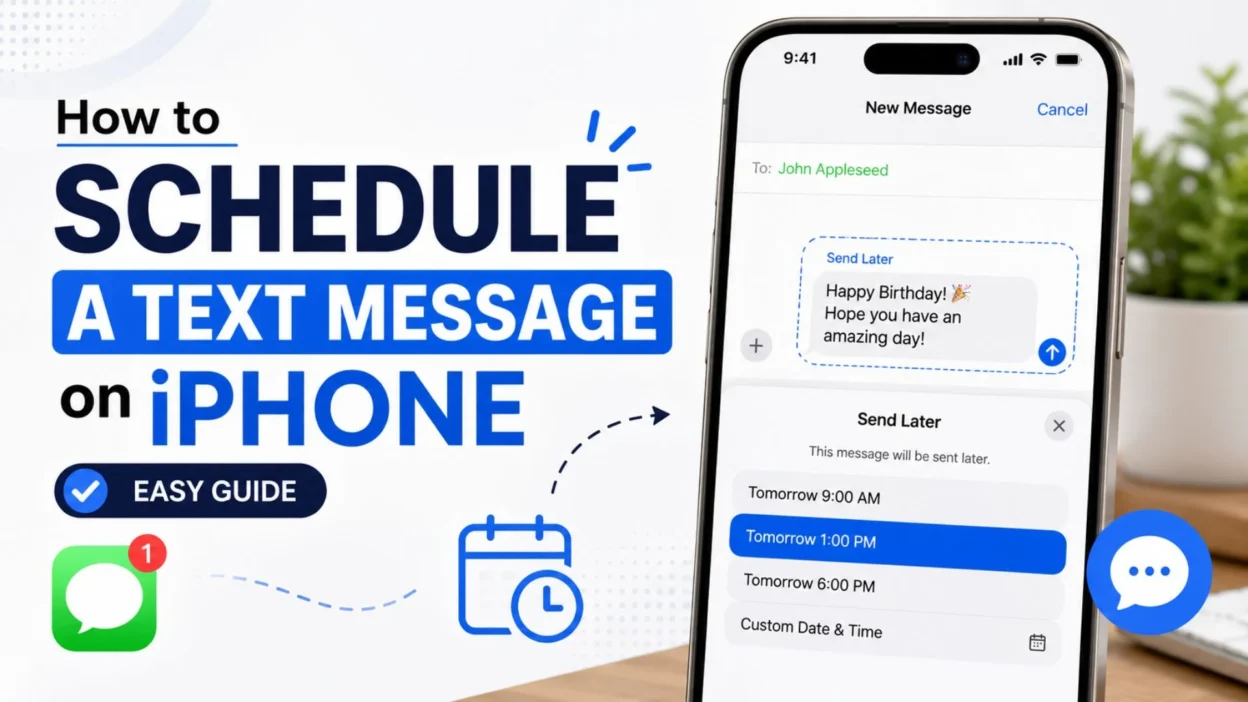
For iPhones that support Send Later, scheduling a message is built directly into the Messages app. Apple says scheduled messages can be set for up to 14 days in advance and require iMessage.
Schedule Your Message
- Open the Messages app on your iPhone.
- Open the conversation where you want to send the scheduled message.
- Tap the Add (+) button beside the text field.
- Tap Send Later.
- Tap the displayed time to open the scheduler.
- Choose the date and time when you want the message delivered.
- Type your message.
- Tap the Send button.
Your scheduled message will appear in the conversation with a dashed outline and its scheduled delivery time.
Can You Schedule a Message 14 Days Ahead?
Yes. Apple currently allows supported iPhone users to schedule an iMessage up to 14 days into the future. This makes the feature useful for upcoming birthdays, reminders, appointments, and other important occasions.
How to Change a Scheduled Text
Plans can change, so you do not necessarily have to cancel the message and create a new one.
- Open Messages.
- Open the conversation containing the scheduled message.
- Look near the bottom of the conversation if you do not immediately see it.
- Tap Edit beside the scheduled date.
- Choose Edit Time.
- Select the new date and time.
- Tap outside the scheduling area to confirm.
You can also choose the option to send the message immediately instead of waiting for the scheduled time.
How to Edit a Scheduled Text Message on iPhone
Made a typo or changed your mind about what you want to say? You can edit a scheduled message before its delivery time.
- Open the Messages app.
- Go to the conversation with the scheduled message.
- Find the scheduled message.
- Touch and hold the message bubble.
- Tap Edit.
- Make your changes.
- Use the available option to send the edited version or cancel the edit.
This gives you a chance to check your wording before the message actually goes out.
How to Cancel a Scheduled Text Message
If you no longer want the message to be sent, you can delete it before its scheduled delivery time.
- Open Messages.
- Open the relevant conversation.
- Find the scheduled message.
- Touch and hold the message.
- Tap Delete.
- The scheduled message will be canceled rather than delivered.
This is useful if plans change or you realize that the message is no longer necessary.
What Happens When a Scheduled Message Is Sent?
Before delivery, the scheduled message has a dashed appearance in the conversation. Once the scheduled time arrives, the message is sent normally.
Apple also notes that scheduled messages are encrypted and stored on its servers only until they are sent. After delivery, the scheduled message is removed from Apple’s servers.
The recipient does not receive a special indication that you scheduled the message.
Does the iPhone Need to Be Online When the Message Sends?
You do not need all of your Apple devices to be online when the scheduled message reaches its delivery time. Apple states that a scheduled message can be delivered even when all of your devices are offline.
However, an internet connection is required if you want to reschedule, edit, or delete a scheduled message.
Why Can’t I Find “Send Later” on My iPhone?
If you are trying to figure out how to schedule a text message on iPhone but cannot find the Send Later option, there are a few things worth checking.
- Make sure your iPhone supports the feature.
- Make sure you are using iMessage for the conversation.
- Check that your iPhone is running a supported version of iOS.
- Open the Add (+) menu in Messages rather than looking only beside the keyboard.
- Check whether your region or carrier affects the availability of Messages features.
Apple specifically notes that Send Later requires iMessage, and some Messages features can vary by country, region, or carrier.
When Is Scheduling a Text Message Useful?
Scheduling is helpful whenever you know what you want to say but do not want to send it immediately.
- Birthday wishes: Prepare the message ahead of time so you do not forget.
- Reminders: Send an important reminder at an appropriate time.
- Travel plans: Schedule a message around your expected arrival or departure.
- Work communication: Prepare a message in advance and send it during suitable hours.
- Special occasions: Write your message early instead of rushing at the last minute.
- Different time zones: Schedule messages so they arrive at a reasonable local time.
The biggest advantage is simple: you can prepare your thoughts when you have time and let the message arrive when it matters.
Tips for Scheduling Texts on iPhone
A few simple habits can make scheduled messages more reliable and useful.
- Double-check the recipient before scheduling.
- Read the entire message once before tapping Send.
- Check AM and PM carefully when selecting a time.
- Confirm the correct date, especially for birthdays and appointments.
- Remember that the built-in Send Later feature is designed for iMessage.
- Review scheduled messages when plans change.
- Use an appropriate delivery time for the person receiving the message.
- Avoid scheduling a message so far ahead that its information may become outdated.
Most importantly, remember that scheduling helps with timing, but you should still check the content before sending it.
Scheduled Text vs. Regular Text
A regular text is sent as soon as you tap Send. A scheduled message, however, stays in your conversation until the delivery time you selected.
With Send Later, you can also change the scheduled time, edit the message, send it immediately, or delete it before delivery.
That makes scheduling especially convenient when you already know what you want to say but the current moment is not the right time to send it.
Can You Schedule Messages to Someone Without an iPhone?
Apple’s current instructions for Send Later specify that you must use iMessage. Apple also says the recipient can use any device and will not know that the message was scheduled.
So, the key requirement is the type of messaging conversation rather than simply whether the recipient owns an iPhone.
Simple Examples of When to Use Scheduled Messages
- Schedule a birthday wish before going to sleep.
- Prepare a morning reminder the night before.
- Send a congratulations message at the beginning of a special day.
- Schedule a reminder about plans you have already discussed.
- Prepare an encouraging message before someone’s important event.
- Schedule a thank-you message when you know the best time for it to arrive.
- Write an early-morning greeting without setting an alarm just to remember it.
- Prepare a message for someone in another time zone.
The feature is most useful when timing matters as much as the words themselves.
Best Times to Schedule a Text Message on iPhone
Choosing the right time can make a scheduled text feel more natural. A few thoughtful timing choices can help your message arrive when the recipient is most likely to notice it.
- Schedule birthday wishes for the morning of the birthday.
- Send reminders shortly before an appointment or plan.
- Schedule work-related messages during normal working hours.
- Consider the recipient’s time zone when sending messages internationally.
- Schedule morning messages before you go to sleep.
- Avoid sending non-urgent messages very late at night.
- For important events, check the date and time twice before scheduling.
Scheduled Text Message Ideas for Everyday Life
Once you know how to schedule a text message on iPhone, you can use the feature for more than special occasions. It can also make everyday communication easier.
- Schedule a reminder about plans you made with a friend.
- Prepare a quick birthday greeting several days in advance.
- Schedule a message reminding someone about an upcoming appointment.
- Send an encouraging message before someone’s big day.
- Prepare a thank-you text ahead of an event.
- Schedule a morning greeting without worrying about forgetting it.
- Send a reminder about something important while you are still thinking about it.
- Prepare a message for someone who lives in another time zone.
- Schedule a congratulations message for an upcoming achievement.
- Write an important message early and schedule it for a more suitable time.
Best Messages for Captions
If you want to mention scheduled texting in a social caption, keep the wording short and natural.
- When timing matters, schedule it and let your iPhone remember. 📱
- Write it now, send it later.
- Some messages deserve perfect timing.
- Planned ahead, sent at the right moment.
- Never miss an important message again.
- Good timing can make a simple message feel special.
- Schedule the thought before the moment gets away.
- A little planning makes texting easier.
- Write first. Schedule. Relax.
- The right words at the right time can make a difference.
Copy-Paste Ready Messages
These short messages can be prepared in advance and scheduled whenever the timing feels right.
- Happy Birthday! Wishing you a wonderful day filled with happiness. 🎉
- Good morning! Hope you have a peaceful and productive day.
- Just a quick reminder about our plans today. See you soon!
- Good luck today! You’ve prepared for this, so trust yourself.
- Congratulations! I hope you enjoy this special moment.
- Don’t forget our appointment tomorrow. See you then!
- Hope your day is going well. Just wanted to check in.
- Wishing you a beautiful weekend and plenty of time to relax.
- Thanks for everything! I really appreciate you.
- Have a safe trip and enjoy every moment!
- Just wanted to remind you that I’m cheering you on today.
- Hope this message gives you a little reason to smile.
- Happy anniversary! Wishing you many more wonderful memories.
- Remember to take a break and enjoy a little time for yourself.
- Have a great day ahead. You’ve got this!
- Just checking in and hoping everything is going smoothly.
- Wishing you good luck with everything today.
- Don’t forget—we’re still on for tonight!
- Hope you have an amazing day. Take care!
- Sending a little encouragement your way today. ✨
Frequently Asked Questions
Can I schedule a text message on my iPhone?
Yes. On supported iPhones, Apple’s Send Later feature in Messages lets you schedule an iMessage for a future date and time.
How far ahead can I schedule a message on iPhone?
Apple currently allows supported users to schedule an iMessage up to 14 days ahead.
Can I edit a scheduled message?
Yes. You can edit the content of a scheduled message before it is delivered.
Can I cancel a scheduled text?
Yes. You can delete a scheduled message before its delivery time if you no longer want it to be sent.
Why don’t I see the Send Later option?
The feature requires iMessage and a supported iOS version. If the option is missing, check your iOS version and make sure the conversation is using iMessage.
Final Thoughts
Knowing how to schedule a text message on iPhone can make everyday communication a little easier. Instead of trying to remember every birthday, reminder, greeting, or important message, you can prepare it ahead of time and choose when it should arrive.
The built-in Send Later feature is particularly useful when you already know what you want to say but the current moment is not ideal. You can also adjust or remove a scheduled message if your plans change.
Most importantly, scheduling does not make a message less personal. The timing is simply planned in advance, while the thought behind the words remains yours.
Whether you are preparing a birthday wish, a friendly reminder, or an important note, taking a moment to schedule it can help you communicate with less stress and fewer forgotten messages.
Sometimes, the simplest way to stay connected is to write it when you remember and send it when the moment is right.

Ryan Mitchell is a professional content writer who specializes in creating heartfelt messages, wishes, greetings, and inspirational quotes for every occasion. He is passionate about helping readers express their thoughts and emotions through meaningful, engaging, and easy-to-share content.